



Last Updated: 6 月 2, 2026
Short Answer
A clean Windows 11 install is safest when you back up files, confirm hardware compatibility, install the correct Home or Pro edition, and keep the activation record ready. Most post-install activation issues come from edition mismatch, hardware changes, or using the wrong setup path.
- Back up files before wiping a drive.
- Check Windows 11 requirements before installation.
- Use the matching Windows 11 key after setup.
Clean Install Windows 11 Decision Checklist for 2026
Short answer: a clean Windows 11 install is safest when you back up first, verify hardware eligibility, create Microsoft installation media, install the exact Home or Pro edition you can activate, finish updates and drivers, then diagnose activation by exact wording. Do not treat every clean-install problem as a bad key.
| Clean-install checkpoint | What to verify | Best next route |
|---|---|---|
| Confirm that clean install is the right setup path | A clean install is best for a new SSD, corrupted installation, major rebuild, or fresh start. It is not the same as an in-place upgrade, edition switch, or simple activation retry. | Compare the clean install vs upgrade license guide, Windows 10 to Windows 11 free-upgrade checklist, and Microsoft Windows 11 installation methods. |
| Back up and separate private data first | Before wiping a drive, save personal files, app installers, BitLocker recovery material if used, browser/password-manager access, and any non-sensitive activation or purchase records needed for private support. | Use the after-purchase setup checklist and the private support evidence checklist. Do not post full product keys, order references, account identifiers, payment details, or private images in public comments. |
| Check Windows 11 hardware eligibility | A clean install does not bypass Windows 11 hardware requirements. Check TPM 2.0, Secure Boot, supported CPU, RAM, storage, firmware mode, and device-driver risk before wiping the current system. | Use Microsoft Windows 11 specifications, the Windows 11 compatibility checker, and the Windows 11 hardware checklist before activation. |
| Create trusted installation media | Use Microsoft installation media or download routes, confirm the USB target, and avoid unofficial ISO or activator workflows. If the PC is moving from Windows 10, remember that Windows 10 support ended on October 14, 2025. | Use Microsoft Windows 11 download page, Microsoft Windows 10 support-ended context, and the Windows 10 end-of-life upgrade checklist. |
| Install the exact edition you can activate | Windows 11 Home, Windows 11 Pro, digital-license activation, typed product-key activation, OEM history, and Volume/KMS context are different routes. A Home/Pro mismatch is one of the most common clean-install activation problems. | Use Microsoft activation context, Microsoft product-key context, Windows key types guide, digital license vs product key guide, and Home key vs Pro mismatch guide. |
| Activate only after the system is stable | After installation, connect to a stable network, finish Windows Update, install key drivers, confirm the installed edition, and then use the correct activation route. | Use the Windows 11 activation guide, Windows 11 Pro product-key tutorial, and the Windows 10 key on Windows 11 guide when the previous license matters. |
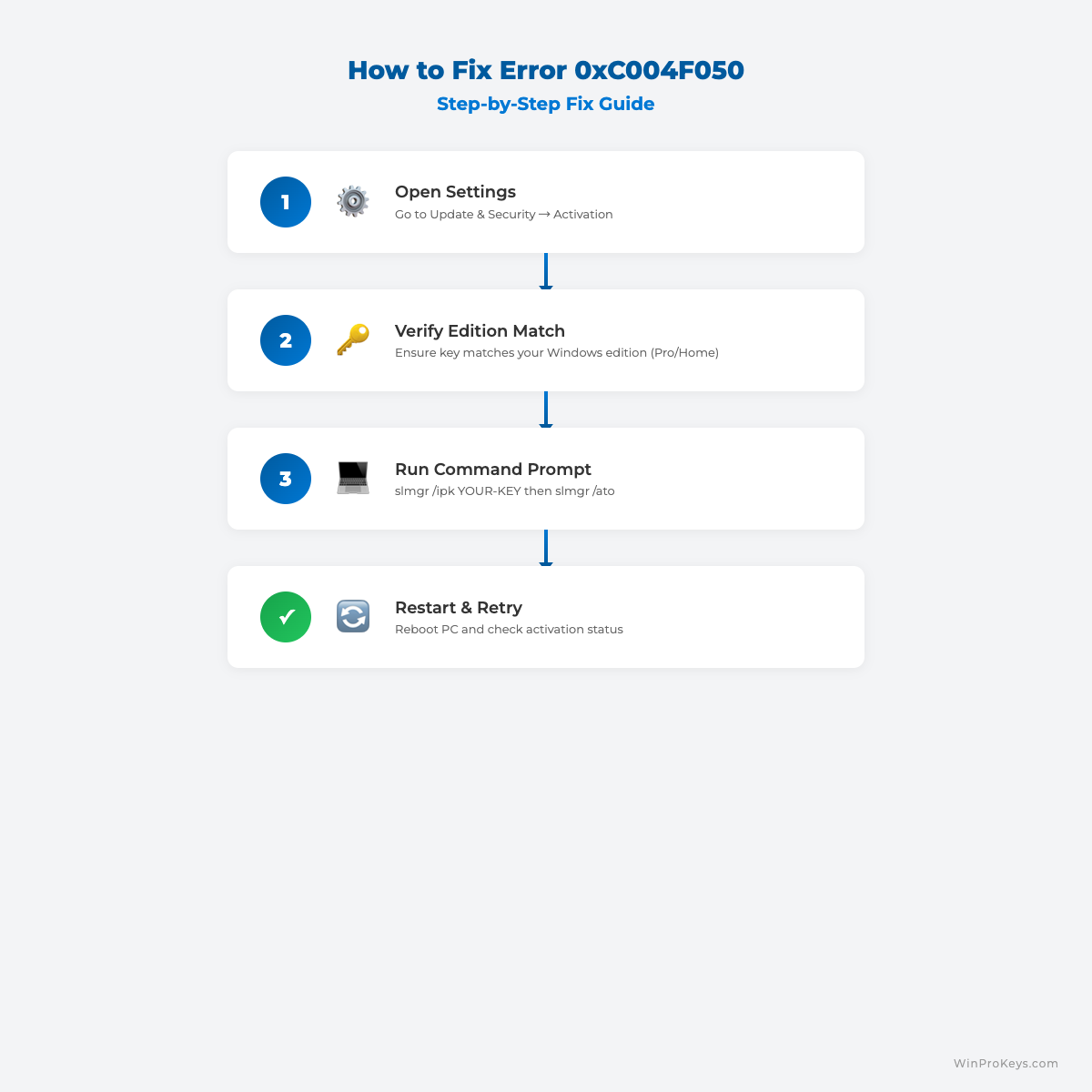
| Diagnose clean-install activation errors by exact wording | If Windows shows 0x803F7001, 0xC004F050, 0xC004C003, no valid license, wrong edition, hardware-change, or activation-server wording, record the exact message before retrying or buying another key. | Use Microsoft activation-error context, the Windows activation error-code hub, and the Windows product-key FAQ. |
| Use support and buying routes only after setup facts are clear | Once the edition, hardware state, activation method, and exact error wording are known, use support-led WinProKeys pages for delivery, after-sales, and order-specific private review. | Start from the Windows key hub, How WinProKeys works, delivery policy, after-sales policy, and contact WinProKeys support. |
WinProKeys is an independent software-key reseller, not Microsoft. Microsoft pages are source context for Windows 11 installation, hardware requirements, activation, product-key, and activation-error behavior; WinProKeys pages explain edition fit, delivery, after-sales, and private support routing after the setup facts are clear.
Clean Install Windows 11: Complete Guide is a practical guide for users who want a clear answer, not generic advice.
Before You Begin
- Back up data.
- Check device compatibility.
- Prepare USB and stable internet.
Complete Procedure
- Download Media Creation Tool/ISO.
- Start upgrade or clean install.
- Install drivers and updates.
- Activate Windows.
Activation issues? Visit Windows Activation Errors.
Recommended routes: use the Windows 11 compatibility checker, Windows 11 hardware checklist, clean install vs upgrade license guide, and Windows activation error-code hub before choosing a buying route.
Best Practices
Always keep your product key archived securely, verify edition compatibility before purchase, and run activation in a stable network environment. For organizations, document deployment records and maintain a simple validation checklist so each installation follows the same standard process. This reduces support tickets and speeds up issue resolution when errors appear.
When you troubleshoot, change only one variable at a time. First verify system date/time, then license edition, then network path, then key input. Structured troubleshooting avoids confusion and prevents unnecessary reinstallations.
FAQ
Can I reactivate after reinstalling?
Usually yes on same hardware and same edition.
Do I need internet?
In most cases, yes.
How long does it take?
It may complete quickly when the edition and activation route are correct, but exact errors still need diagnosis.
What if activation still fails?
Share only non-sensitive activation wording, installed edition, hardware-change context, and order-specific context through private support. Do not post full product keys, account identifiers, payment details, or private images in public comments.
Choose the Right License Today
If Windows 11 Pro is the right fit after the clean-install checks, start with the Windows key hub, Windows 11 activation guide, after-purchase setup checklist, and private support evidence checklist.
Visual Fix Guide
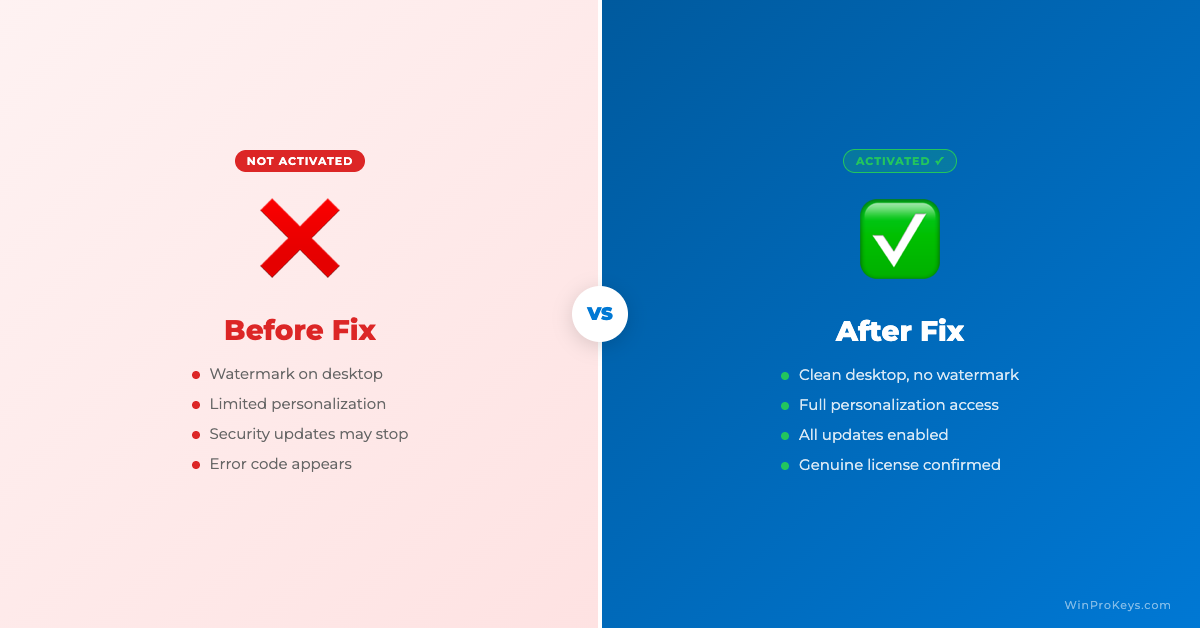
Before vs After Activation
Source and Support Links
Use Microsoft pages as source context for Windows 11 installation, hardware requirements, activation, product-key, and activation-error behavior. Use WinProKeys pages for delivery, after-sales, and reseller-specific support guidance.
Frequently Asked Questions
Will a clean install remove activation?
A clean install can remove local setup, but activation may return automatically if the device has a valid digital license for the same edition.
Can I install Windows 11 Pro with a Home key?
No. The installed edition and key must match, or activation will fail.
What should I save before a clean install?
Save personal files, private order context, product-key record if applicable, Microsoft account sign-in access, and any driver or app installers you need.
Need the live product pages?
If you have finished the guide and need the current Windows or Office pages, use the shop as the source of truth for pricing, delivery details, and activation help.
Open the shopUse the next step that matches your setup
Stay with the Windows and Office routes we actively maintain most. Choose the guide, troubleshooting path, or hub that answers the next real question instead of jumping into an unrelated product page.
Use the live guide or product page as the source of truth for delivery, redemption, and post-sale support details.

