



Last Updated: Maio 30, 2026
Short Answer
A Windows bootable USB drive lets you install or reinstall Windows, but it does not replace a valid activation path. Before installing, confirm whether the target PC needs Windows Home or Pro, back up important files, and keep your product-key or digital-license record available.
- Use official Windows installation media when possible.
- Install the same edition you plan to activate.
- After setup, activate Windows in Settings with the correct key.
Como criar uma unidade USB de arranque do Windows is a practical guide for users who want a clear answer, not generic advice.
Before You Begin
- Back up data.
- Check device compatibility.
- Prepare USB and stable internet.
Complete Procedure
- Download Media Creation Tool/ISO.
- Start upgrade or clean install.
- Install drivers and updates.
- Activate Windows.
Activation issues? Visit Windows Activation Errors.
Recommended next steps: Windows 11 Pro, Windows 10 Pro, Office 2021 Professional Plus, and Office 2019 Professional Plus.
Best Practices
Always keep your product key archived securely, verify edition compatibility before purchase, and run activation in a stable network environment. For organizations, document deployment records and maintain a simple validation checklist so each installation follows the same standard process. This reduces support tickets and speeds up issue resolution when errors appear.
When you troubleshoot, change only one variable at a time. First verify system date/time, then license edition, then network path, then key input. Structured troubleshooting avoids confusion and prevents unnecessary reinstallations.
FAQ
Can I reactivate after reinstalling?
Usually yes on same hardware and same edition.
Do I need internet?
In most cases, yes.
How long does it take?
Often less than a minute with a valid key.
What if activation still fails?
Share error code, screenshot, and purchase proof with support.
Start with a Genuine License
Get a genuine license and activate with confidence. Start with Windows 11 Pro, Windows 10 Pro, and Office 2021 Professional Plus.
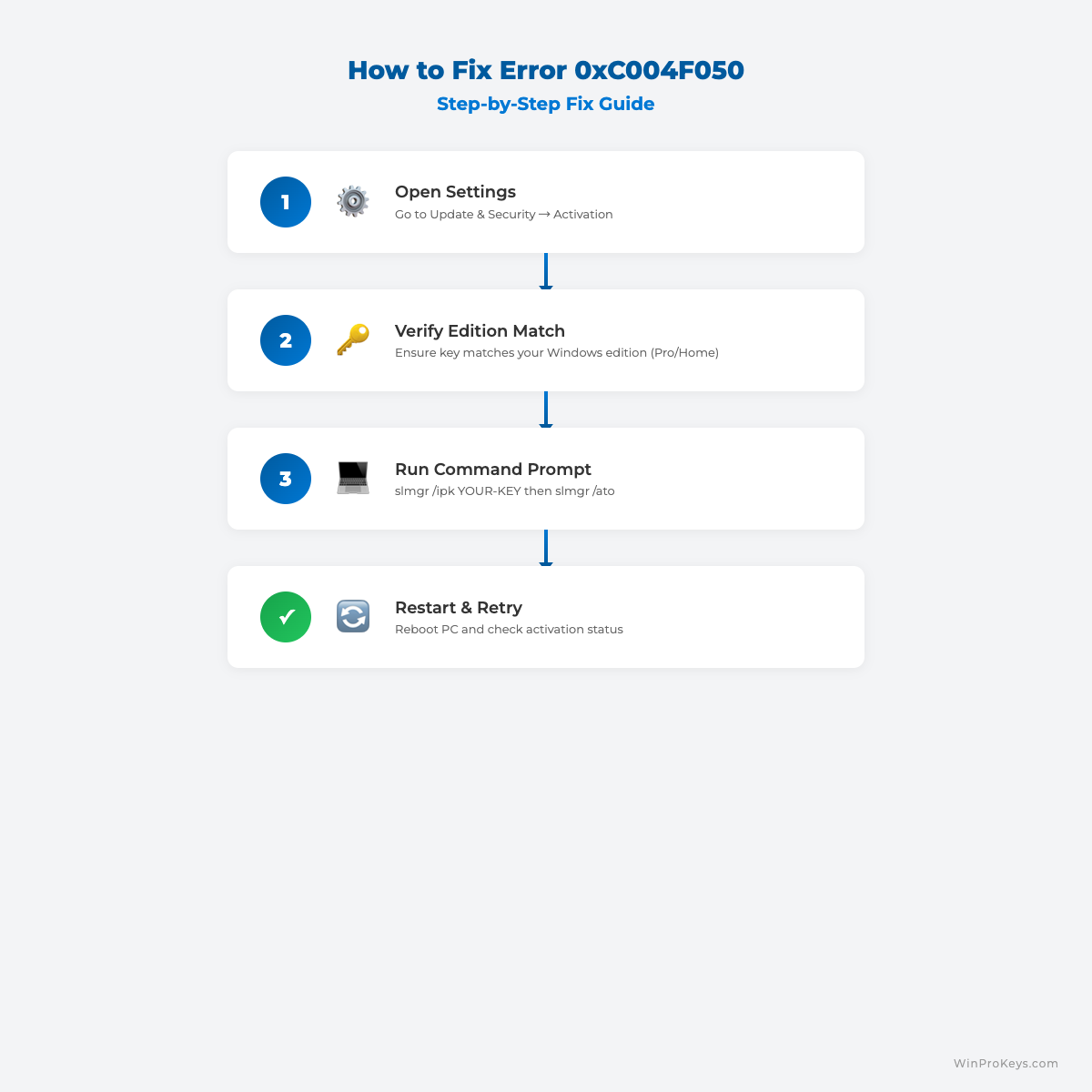
Visual Fix Guide
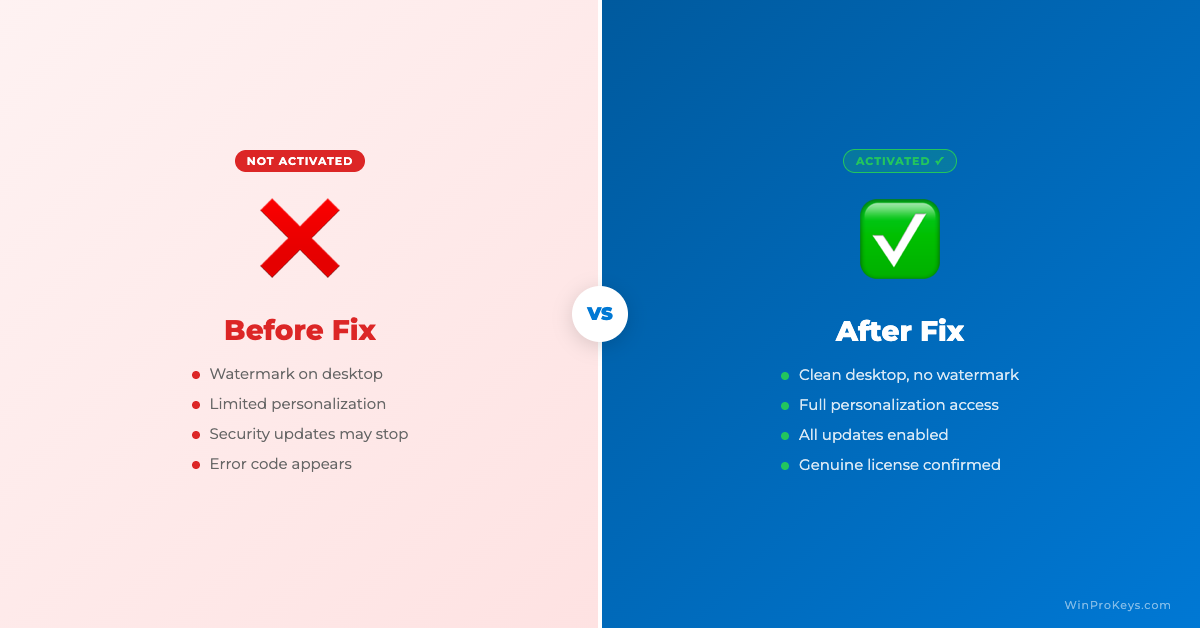
Before vs After Activation
Source and Support Links
Use Microsoft Support pages for general product behavior and activation context. Use WinProKeys pages for store delivery, order support, and reseller-specific guidance.
Frequently Asked Questions
Does a bootable USB include a Windows product key?
No. Installation media installs Windows, but activation still depends on a matching key or digital license.
Which edition should I install?
Install the edition you own or plan to activate, such as Home or Pro. Edition mismatch is a common activation problem.
Can I activate after the installation is finished?
Yes. After installation, go to Windows activation settings and enter the matching product key if the PC does not already have a digital license.
Need the live product pages?
If you have finished the guide and need the current Windows or Office pages, use the shop as the source of truth for pricing, delivery details, and activation help.
Open the shopUse the next step that matches your setup
Stay with the Windows and Office routes we actively maintain most. Choose the guide, troubleshooting path, or hub that answers the next real question instead of jumping into an unrelated product page.
Use the live guide or product page as the source of truth for delivery, redemption, and post-sale support details.

