


Last Updated: czerwiec 2, 2026
Short Answer
A safe Windows product key purchase starts with the installed edition, not the price. Confirm whether you need Home or Pro, check delivery and support terms, then use the matching Windows activation path after purchase.
- Check the exact product version and edition before buying or activating.
- Use Microsoft Support pages as source context for Windows activation behavior.
- Use WinProKeys support pages for delivery, setup, after-sales, and private troubleshooting context.
Buying a Windows product key for the first time can be confusing. Retail, OEM, volume, digital, physical — what do all these terms mean, and where should you actually buy? This guide cuts through the noise and shows you exactly how to buy a Windows key safely in 2026.
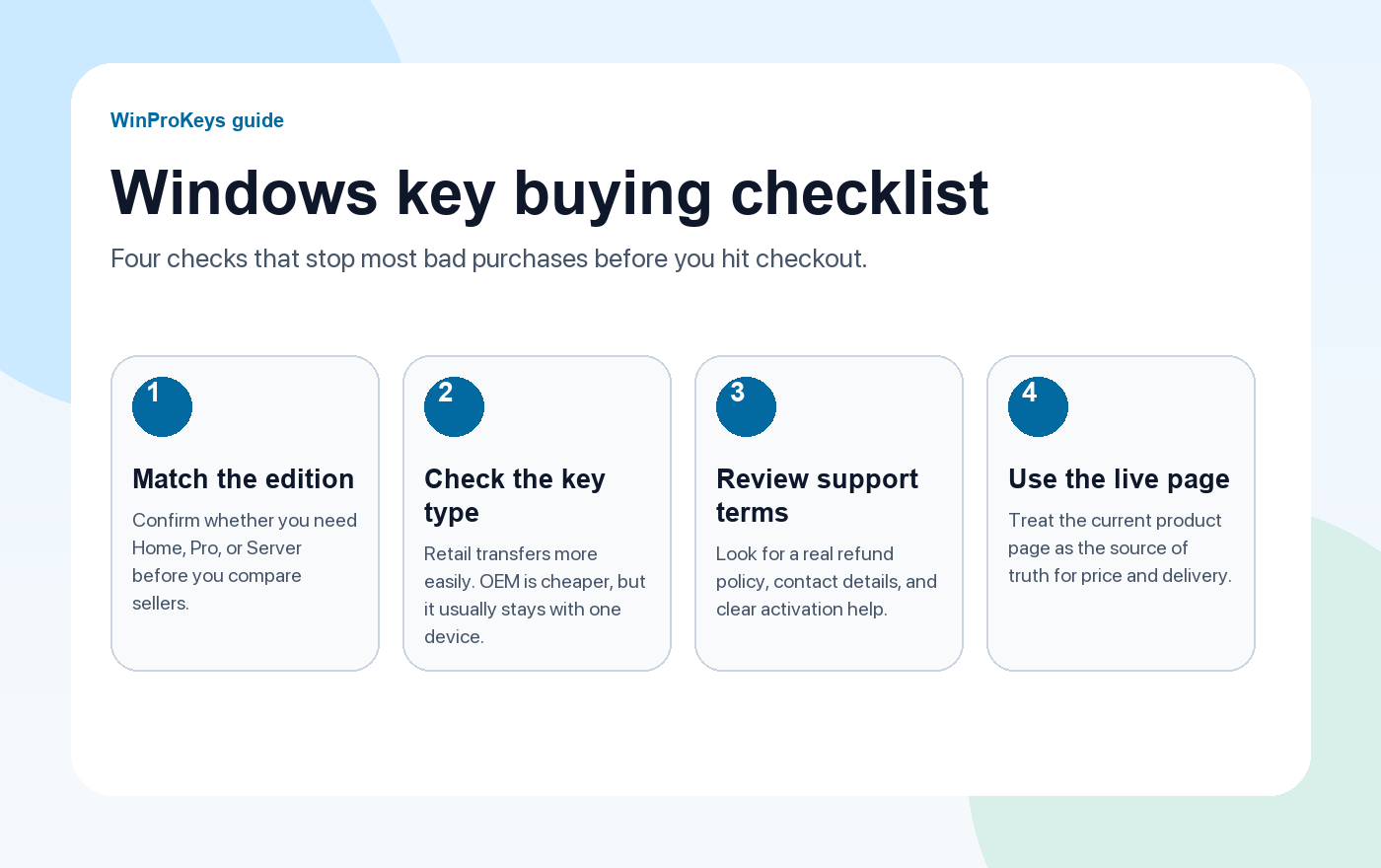
Before you buy
Use these pages to make the buying decision faster
These are the internal pages most readers end up opening anyway. Start here instead of bouncing between random product listings.
- Windows 11 Home vs ProUse this when you are still deciding which edition fits your setup.
- Windows product key types explainedRetail, OEM, volume, and digital license in plain English.
- Best place to buy Windows 11 ProA practical seller comparison before you spend money.
- Browse live Windows key pagesCheck the current Windows key hub and support pages instead of copied prices or stale claims.
Step 1: Decide Which Windows Edition You Need
Before buying, pick the right edition:
- Windows 11 Home — Perfect for everyday use, web browsing, and entertainment
- Windows 11 Pro — Adds BitLocker encryption, Remote Desktop, Hyper-V, and Group Policy. Best for power users and professionals
- Windows 10 Pro — Often used for older hardware or compatibility-focused setups. Windows 10 reached the end of standard support on October 14, 2025, so compare it with Windows 11 before buying
Not sure? Check our Windows 11 Home vs Pro comparison.
Step 2: Understand Key Types
There are several types of Windows product keys. Here’s what matters:
Retail Keys
- Can be transferred to a new PC
- Most expensive option
- Sold directly by Microsoft
OEM Keys
- Tied to one device (cannot transfer)
- Significantly cheaper than retail
- Completely legal — same keys Dell, HP, and Lenovo use
- Best value for most buyers
Volume License Keys
- Designed for businesses and organizations
- May require a minimum purchase quantity
- Not recommended for individual buyers
For a deeper dive, read our complete guide to Windows key types.
Step 3: Choose Where to Buy
Option A: Microsoft-direct buying
This is the most conservative route for buyers who want to buy directly from Microsoft and accept standard retail pricing.
Option B: Specialist Software Stores (Discounted)
Specialist Windows resellers can be a reasonable option when they clearly explain the license type, delivery expectation, setup help, after-sales terms, and private support path. Look for:
- Clear product scope and edition fit
- Visible delivery expectations
- Private setup and troubleshooting support
- After-sales review terms before purchase
Option C: Marketplaces (Risky)
Sites like G2A and Kinguin sell keys from third-party sellers. Prices are low but risks are higher — keys may be revoked or already used. Read our G2A safety analysis before buying there.
Step 4: Activate Your Key
Once you have your key, activation takes 2 minutes:
- Open Settings → System → Activation
- Click “Change product key”
- Enter your 25-character key (format: XXXXX-XXXXX-XXXXX-XXXXX-XXXXX)
- Click Next
- Windows activates instantly online
Having trouble? Check our Windows 11 activation guide lub Windows 10 activation guide.
How to Spot a Scam
Slow down if you notice any of these signs:
- The listing is dramatically cheaper than everything else but never explains the license type.
- There is no real contact page, after-sales terms, or post-sale support path.
- The seller provides only image-based proof instead of a clear delivery and support trail.
- The seller asks for remote access just to activate Windows.
Good sellers explain what kind of license you are buying, how delivery works, and what support is available if activation does not go through normally.
What to Open Next
If you already know the edition, use the Windows key hub to compare current Windows options. If you are still deciding, use the support guides first so the edition, key type, and activation route are clear.
- Windows key hub for current Windows options.
- Windows 11 Home vs Pro guide for edition fit.
- Windows product key types guide for Retail/OEM/Volume/digital-license context.
Bottom Line
Most bad purchases happen because the edition was wrong, the key type was unclear, or the seller information was vague. Match the edition first, understand whether the route is product-key, OEM-style, Volume/KMS, or digital-license context, and review delivery plus support details before purchase.
Frequently Asked Questions
What should I check before buying a Windows product key?
Check the edition first, then the key type, seller identity, delivery expectation, after-sales terms, and whether the seller explains what happens if activation fails.
Is a cheaper Windows key always a bad sign?
Not always, but a vague listing is a bad sign. A safer seller explains the edition, activation path, delivery timing, and support process instead of relying only on a low price.
Should I buy Windows Home or Pro?
Choose Home for normal personal use. Choose Pro if you need BitLocker, Remote Desktop host, Hyper-V, domain join, or business policy controls.
Source and Support Links
Use Microsoft Support pages for general product behavior and activation rules. Use WinProKeys pages for store delivery, order support, and reseller-specific guidance.
Frequently Asked Questions
What is the first thing to check for How to Buy a Windows Product Key?
Check the installed Windows edition first. A Home key and a Pro key are not interchangeable, and many activation problems begin with edition mismatch.
Is WinProKeys operated by Microsoft?
No. WinProKeys is an independent software-key reseller and is not operated by Microsoft. Microsoft Support pages are source context for Windows activation behavior.
What should I send support if Windows activation fails?
Use private support with the installed Windows edition, exact activation wording, device context, and order-specific context. Do not post full keys, account identifiers, payment details, or private images in public comments.
Need the live product pages?
If you have finished the guide and need the current Windows or Office pages, use the shop as the source of truth for pricing, delivery details, and activation help.
Open the shopChoose the product path that matches your device
These are the six Windows and Office routes we actively support most. Pick by edition fit first, then use the live product page for redemption steps, delivery timing, and post-sale support details.
If you are still deciding, use the Windows hub lub Office hub before checkout.


4 thoughts on “How to Buy a Windows Product Key: A Complete Buyer’s Guide (2026)”
Comments are closed.