



Last Updated: June 2, 2026
Windows 10 support ended on October 14, 2025. That date has already passed, so the question in 2026 is no longer whether support is ending. The question is what you should do next with the hardware you already own.
Next steps after Windows 10
Use these pages to decide whether to upgrade, bridge, or replace
Once you accept that Windows 10 support already ended, choose the least messy next move for the hardware in front of you before looking at any license route.
- How to upgrade from Windows 10 to Windows 11 in 2026Start here if the PC is eligible and you want the cleanest path forward.
- Windows 11 hardware checklist before activationCheck TPM, Secure Boot, edition, and activation context before troubleshooting.
- Windows 11 Home vs Pro decision guideUse this when the next machine or next install needs a clear edition decision.
- Windows 10 ESU and end-of-life optionsHelpful when the old device cannot move immediately.
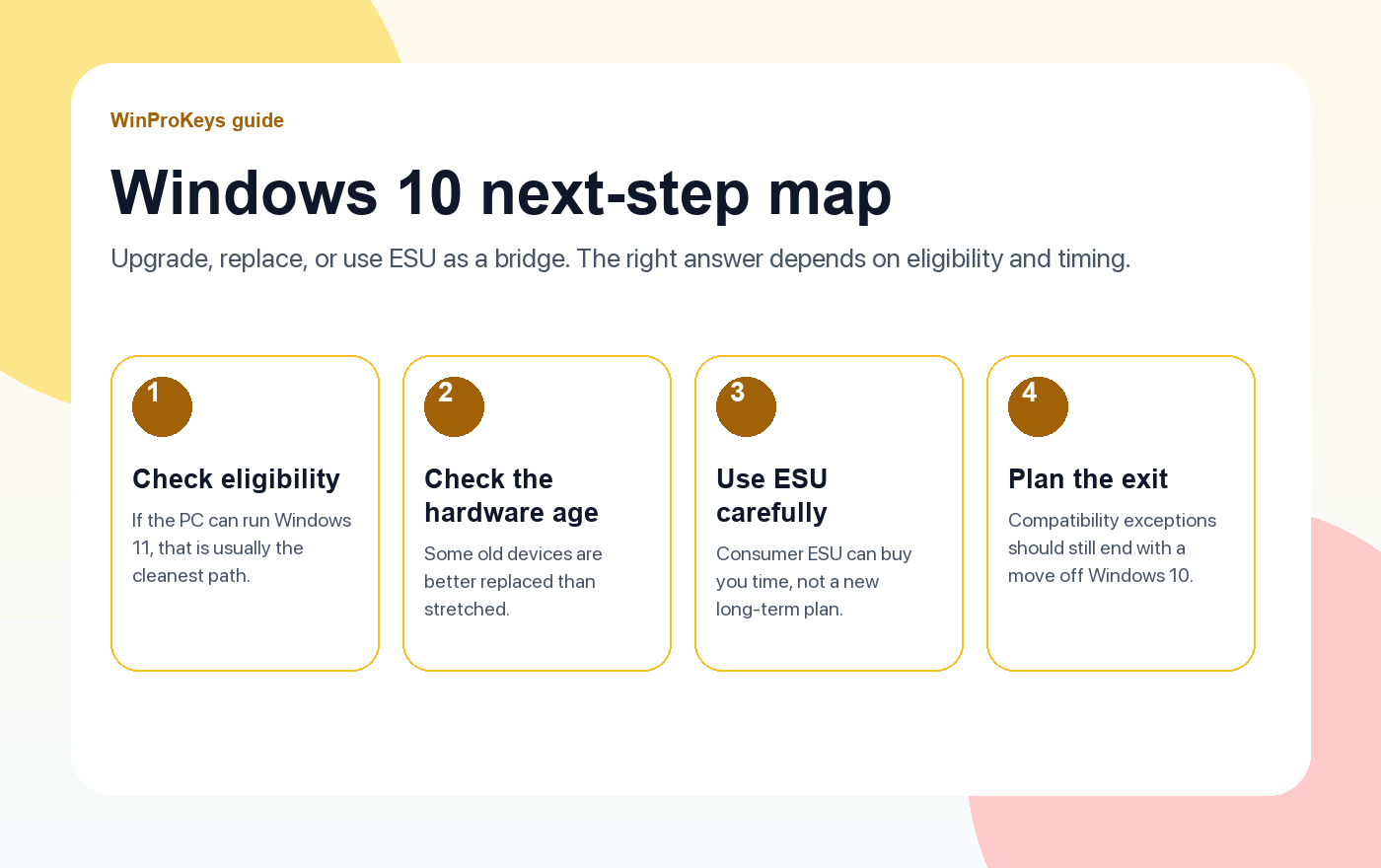
Short Answer: What Should You Do After Windows 10 End of Life?
If your PC is eligible, move from Windows 10 to Windows 11 and confirm same-edition activation afterward. If the PC is not eligible but must stay online temporarily, treat ESU as a short bridge while you plan replacement or migration. Do not buy another key, wipe the drive, or post private support details until hardware fit, edition fit, upgrade method, and exact activation wording are clear.
Windows 10 End-of-Life Upgrade Decision Checklist for 2026
Use this checklist to choose the next step after the October 14, 2025 Windows 10 support deadline. The best route depends on lifecycle status, Windows 11 hardware eligibility, migration method, ESU bridge needs, Home vs Pro fit, activation evidence, and private support review.
| Decision checkpoint | What to verify | Best next route |
|---|---|---|
| Confirm the support deadline first | Windows 10 Home and Pro standard support ended on October 14, 2025. In 2026, the decision is no longer whether support is ending, but whether to upgrade, bridge briefly, or replace the device. | Use Microsoft Windows 10 support-ended guidance, Microsoft Windows 10 lifecycle status, Windows 10 ESU and end-of-life options, and Windows 10 vs Windows 11 full comparison. |
| Check whether the PC can move to Windows 11 | Upgrade is the cleanest path only when the hardware is eligible. Confirm TPM 2.0, Secure Boot, supported CPU, RAM, storage, firmware, and driver readiness before planning the move. | Use Microsoft Windows 11 specifications, Microsoft can-I-upgrade guidance, Windows 11 compatibility checker, and Windows 11 hardware checklist before activation. |
| Choose the migration method | Windows Update, Installation Assistant, installation media, and clean install paths are not interchangeable. Pick the method before wiping a drive or assuming a new key is needed. | Use Microsoft Windows 11 installation methods, Microsoft Windows 11 download page, Microsoft Windows 11 upgrade FAQ, free vs paid Windows 11 upgrade methods, and free Windows 10 to Windows 11 upgrade guide for 2026. |
| Use ESU only as a bridge | Extended Security Updates can buy time for a Windows 10 exception, but they should not become the long-term plan. Use the bridge to retire blockers, not to postpone the decision indefinitely. | Use Windows 10 ESU options, Windows 10 end-of-life upgrade guide, and Windows 10 vs Windows 11 upgrade decision guide. |
| Separate Home vs Pro from the Windows 10 to 11 move | Moving from Windows 10 to Windows 11, choosing Home vs Pro, and changing edition are separate decisions. A same-edition upgrade is different from a Home-to-Pro route. | Use Windows 11 Home vs Pro decision guide, Home-to-Pro upgrade reasons guide, Windows 11 Pro activation tutorial, and Windows 11 Pro product-key activation steps. |
| Check activation after the move | After upgrade or clean install, route exact activation wording before retrying, buying again, or assuming the old Windows 10 key will transfer. Watch for 0x803F7001, 0xC004F050, digital license, and wrong-edition wording. | Use Microsoft activation context, Microsoft product-key context, Microsoft activation-error context, Windows 10 key on Windows 11 guide, digital license vs product key guide, Windows activation error-code hub, 0x803F7001 guide, and 0xC004F050 guide. |
| Replace hardware when the exception is bigger than the PC | If the device is old, slow, unsupported, or driver-blocked, replacement can be cleaner than paying for a bridge and still owning a fragile Windows 10 exception. | Use visual Windows 10 vs Windows 11 comparison, after-purchase Windows key checklist, Windows key hub, and replacement or refund review explainer only after hardware and edition fit are clear. |
| Keep support evidence private | Do not post full product keys, order references, Microsoft account identifiers, payment details, or private files in public comments, forums, AI chats, or creator threads. | Use private support evidence checklist, How WinProKeys works, delivery policy, after-sales policy, and contact WinProKeys support when order-specific review is needed. |
WinProKeys is an independent software-key reseller, not Microsoft. Microsoft pages are source context for Windows 10 support status, Windows 11 upgrade eligibility, requirements, installation methods, downloads, activation, product-key lookup, and activation-error wording; WinProKeys pages explain edition fit, upgrade routing, delivery, after-sales, and private support review.
What changed after October 14, 2025
Windows 10 PCs still boot, but the free security-update runway is over. Microsoft is no longer treating Windows 10 as a normally supported consumer operating system. That means the longer you stay put, the more the burden shifts onto you to limit risk and plan the exit.
The three realistic paths now
- Upgrade to Windows 11. This is usually the cleanest answer when the hardware is eligible.
- Use ESU as a short bridge. Consumer ESU can buy you time, but it should not become a permanent excuse.
- Replace the hardware. If the device is old, slow, and ineligible for Windows 11, replacement is often cleaner than squeezing one more year out of it.
How to choose between Windows 11 Home and Pro
If the machine is a normal personal PC, start with the Windows 11 Home vs Pro decision guide and confirm whether the device needs Pro features before changing edition. If the next setup needs BitLocker management, Remote Desktop host, or more admin control, use the Windows 11 Pro activation tutorial after the hardware and edition path are clear. The cleanest move is the one that matches the next device’s real job, not the one that sounds most future-proof on paper.
What if you still need Windows 10 for compatibility?
Then treat it as a controlled exception. Keep the device on a narrow role, avoid turning it into your all-purpose main PC again, and make sure there is still a real plan to leave Windows 10 behind. The worst outcome is not staying on Windows 10 for one more reason. The worst outcome is drifting there with no exit plan.
| Situation | Best next move |
|---|---|
| Eligible PC with useful life left | Upgrade to Windows 11 |
| Ineligible PC but short-term business need remains | Use ESU as a bridge while you plan the move |
| Old, slow, ineligible hardware | Replace the device instead of stretching support exceptions |
Frequently Asked Questions
Is Windows 10 unusable now?
No. The PC still works. The issue is that the support and security position is weaker after support ended.
Should I buy ESU for every Windows 10 device?
No. ESU is best treated as a bridge for exceptions, not a blanket answer.
When is replacement better than upgrading?
When the hardware is already old, misses Windows 11 requirements, and would still feel like a compromise after more spending.
What is the best first check?
Check whether the current PC is eligible for Windows 11. That decides most of the next branch.
Need the live product pages?
If you have finished the guide and need the current Windows or Office pages, use the shop as the source of truth for pricing, delivery details, and activation help.
Open the shopChoose the product path that matches your device
These are the six Windows and Office routes we actively support most. Pick by edition fit first, then use the live product page for redemption steps, delivery timing, and post-sale support details.
If you are still deciding, use the Windows hub or Office hub before checkout.

