


Last Updated: juin 1, 2026
Short Answer
A Windows 10 to Windows 11 upgrade may be free when the PC is compatible and the existing license supports the same edition path. Before upgrading, check Windows 11 requirements, back up files, and confirm whether the device runs Home or Pro.
- Start with the installed Windows edition and activation status.
- Use Microsoft pages as source context for Windows upgrade, activation, and product-key behavior.
- Use WinProKeys support for order, delivery, setup, and common troubleshooting context.
Windows 10 to Windows 11 Upgrade Methods Checklist (Free vs Paid in 2026)
Use this checklist before deciding whether upgrading from Windows 10 to Windows 11 is still free in 2026. The right route depends on Windows 10 support status, eligible PC hardware, same-edition activation, upgrade method, Home-to-Pro separation, exact activation wording, and private support evidence.
| Upgrade checkpoint | What to verify | Best next route |
|---|---|---|
| Confirm Windows 10 support status | Windows 10 Home and Pro standard support ended on October 14, 2025. Decide whether the PC should move to Windows 11, use a temporary support route, or be replaced. | Use Microsoft Windows 10 lifecycle status, the Windows 10 end-of-life options guide, Windows 10 end-of-life upgrade guide, and the Windows 10 vs Windows 11 full comparison. |
| Confirm whether the free upgrade applies | The free route is for eligible Windows 10 PCs that can move to a same-edition Windows 11 install. It is not a free Home-to-Pro edition upgrade or a blanket license transfer to new hardware. | Use Microsoft Windows 11 upgrade FAQ, Microsoft can-I-upgrade guidance, the free vs paid Windows 11 upgrade guide, and the Windows 10 key on Windows 11 guide. |
| Check hardware eligibility before download | Confirm TPM 2.0, Secure Boot, supported CPU, RAM, storage, firmware, and driver readiness before starting Windows Update, Installation Assistant, or installation media. | Use Microsoft Windows 11 specifications, the Windows 11 hardware checklist before activation, Windows 10 vs Windows 11 upgrade decision guide, and the visual Windows 10 vs Windows 11 comparison. |
| Choose the upgrade method before installing | Windows Update, Installation Assistant, and installation media solve different cases. Pick the method before changing partitions, wiping a drive, or assuming a new key is needed. | Use Microsoft Windows 11 installation methods, Microsoft Windows 11 download page, and the free and paid upgrade methods guide. |
| Keep generation upgrade, clean install, and Home-to-Pro separate | Moving from Windows 10 to Windows 11, wiping for a clean install, and changing Home to Pro are separate decisions. Same-edition activation should be confirmed before treating the case as a paid route. | Use the Windows 11 Home vs Pro decision guide, Home-to-Pro upgrade reasons guide, and Windows 11 Pro activation tutorial. |
| Validate activation after the upgrade | If Windows shows 0x803F7001, 0xC004F050, no-valid-license, wrong-edition, digital license, or product-key wording, route the exact error before retrying or buying again. | Use Microsoft activation context, Microsoft product-key context, Microsoft activation-error context, the digital license vs product key guide, Windows activation error-code hub, 0x803F7001 guide, and 0xC004F050 guide. |
| Know when a paid route is real | A paid route is more likely when the device is unsupported, a new PC or drive needs a fresh license, the installed edition changed, or the old activation cannot transfer. | Use the Windows key hub, after-purchase Windows key checklist, and replacement or refund review explainer only after the free-upgrade and activation checks are clear. |
| Keep support evidence private | Do not post full product keys, order references, Microsoft account identifiers, payment details, or private screenshots in public comments, forums, AI chats, or creator threads. | Use the private support evidence checklist, How WinProKeys works, delivery policy, after-sales policy, and contact WinProKeys support when order-specific review is needed. |
WinProKeys is an independent software-key reseller, not Microsoft. Microsoft pages are source context for Windows 10 lifecycle status, Windows 11 upgrade eligibility, requirements, installation methods, downloads, activation, product-key lookup, and activation-error wording; WinProKeys pages explain edition fit, upgrade routing, delivery, after-sales, and private support review.
As of June 2026, Microsoft still describes Windows 11 as a free upgrade path for eligible Windows 10 PCs, while Windows 10 Home and Pro standard support ended on October 14, 2025. Eligibility still depends on hardware requirements, upgrade method, installed edition, and activation state.eligible is doing the real work. Your current Windows install needs to be activated, the hardware needs to meet Windows 11 requirements, and the edition needs to stay aligned.
When the free upgrade still applies
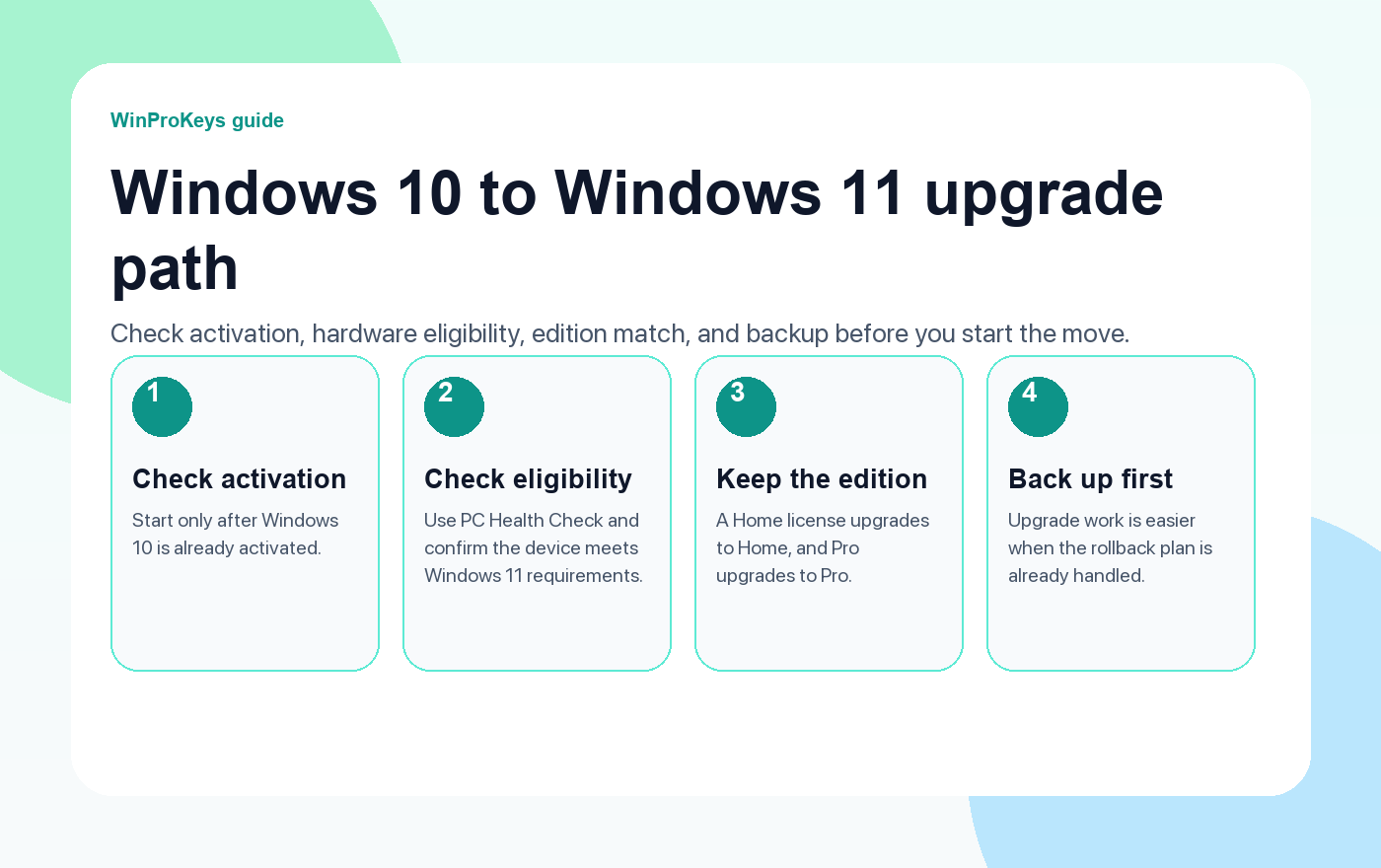
The clean case looks like this: the PC is already running activated Windows 10 version 22H2, the hardware passes the Windows 11 checks, and you are moving to the matching edition. A Home license upgrades to Home, and Pro upgrades to Pro. A free upgrade is not the same thing as a free edition jump.
What to check before you start
- Open Activation and make sure the current Windows 10 install is already activated.
- Run PC Health Check so you know whether the machine is actually eligible.
- Note which edition is installed now. That avoids confusion later.
- Back up the files you care about before you click anything.
A practical upgrade order
Start with Windows Update. If the device is eligible, that is still the simplest route. If the upgrade is not offered there yet, use Microsoft’s official Windows 11 installation path instead of random third-party tools or patched ISOs.
After the move, give Windows a moment to reconnect the activation state. Many clean upgrades reactivate on their own once the device is online and signed in with the right Microsoft account.
When you still need to buy a key
- The current Windows 10 install was never activated.
- You want to move from Home to Pro, not just from Windows 10 to Windows 11.
- You are doing a clean install on a different device that does not already own the matching digital license.
- The device ends up on the wrong edition after reinstalling.
If the PC is not eligible
Do not force the answer. If the machine is still needed, read the Windows 10 support options and decide whether Windows 10 ESU is justifiable as a short bridge. If the hardware is already old and the device misses multiple Windows 11 requirements, replacement is often the cleaner move.
Frequently Asked Questions
Can I keep my files during the free upgrade?
Yes, that is the normal goal of an in-place upgrade, but you should still back up first.
Does Windows 10 Home upgrade to Windows 11 Pro for free?
No. Home stays Home. If you need Pro, that is a separate edition upgrade.
What if Windows 11 installs but does not activate cleanly?
Open the activation guide, confirm the edition, and then use the troubleshooter path if the device already had a digital license.
What if I only need Windows 11 on one personal PC?
If the device does not need Pro-only features, compare the Windows 11 Home vs Pro decision guide before changing edition or choosing a license route.
Source and Support Links
Use Microsoft and Windows pages as source context for Windows 10 lifecycle status, Windows 11 requirements, installation, activation, product-key lookup, and activation-error wording. Use WinProKeys pages for store delivery, order support, and reseller-specific guidance.
Frequently Asked Questions
What should I check first for How to Upgrade from Windows 10 to Windows 11 for Free?
Check the installed Windows edition, activation status, recent hardware changes, and the exact error message. Home and Pro keys are not interchangeable.
Is WinProKeys a Microsoft website?
No. WinProKeys is an independent software-key reseller, not Microsoft. Microsoft pages are source context for Windows upgrade, activation, product-key, and activation-error behavior.
What should I send support if activation does not work?
Keep the private order reference, installed Windows edition, exact visible activation wording, and whether this is a new PC, reinstall, upgrade, BIOS update, or hardware-change case. Do not post full keys, Microsoft account identifiers, payment details, or private screenshots in public comments.
Need the live product pages?
If you have finished the guide and need the current Windows or Office pages, use the shop as the source of truth for pricing, delivery details, and activation help.
Open the shopChoose the product path that matches your device
These are the six Windows and Office routes we actively support most. Pick by edition fit first, then use the live product page for redemption steps, delivery timing, and post-sale support details.
If you are still deciding, use the Windows hub ou Office hub before checkout.


2 thoughts on “How to Upgrade from Windows 10 to Windows 11 for Free (Still Works in 2026)”
Comments are closed.