


Last Updated: Mai 30, 2026
Short Answer
Short answer: activate Windows 11 from Settings only after confirming the installed edition matches the key. If activation fails, check the edition, internet access, Microsoft account/digital license status, and the exact error code before trying another key.
Microsoft Support Sources To Check First
WinProKeys is an independent software-key reseller, not Microsoft. Use this guide as a diagnostic checklist before buying, retrying activation, or contacting support.
Related WinProKeys Support Paths
- Home vs Pro edition mismatch checklistUse this if a Pro key is entered on Home or the edition path is unclear.
- 0xC004F050 activation error checklistUse this when Windows says the product key did not work.
Activating Windows 11 is usually simple when the edition is correct and the license path matches the device. Most trouble starts earlier: the wrong edition gets installed, a user expects Home to behave like Pro, or the device had a previous digital license that was never given a chance to reconnect.
Activation path
Open these pages before you enter a Windows 11 product key
Most activation problems come from edition mismatch or old install history, not from anything mysterious in the activation screen itself.
- Windows activation error guidesUse this if a specific code shows up after you enter the key.
- Windows 11 Home Product KeyThe correct fit when the device is meant to stay on Home.
- Windows 11 Pro ProduktschlüsselUse this when the device needs a real Pro activation path.
- How to upgrade to Windows 11Helpful when the device is moving from activated Windows 10.
Before you enter the key
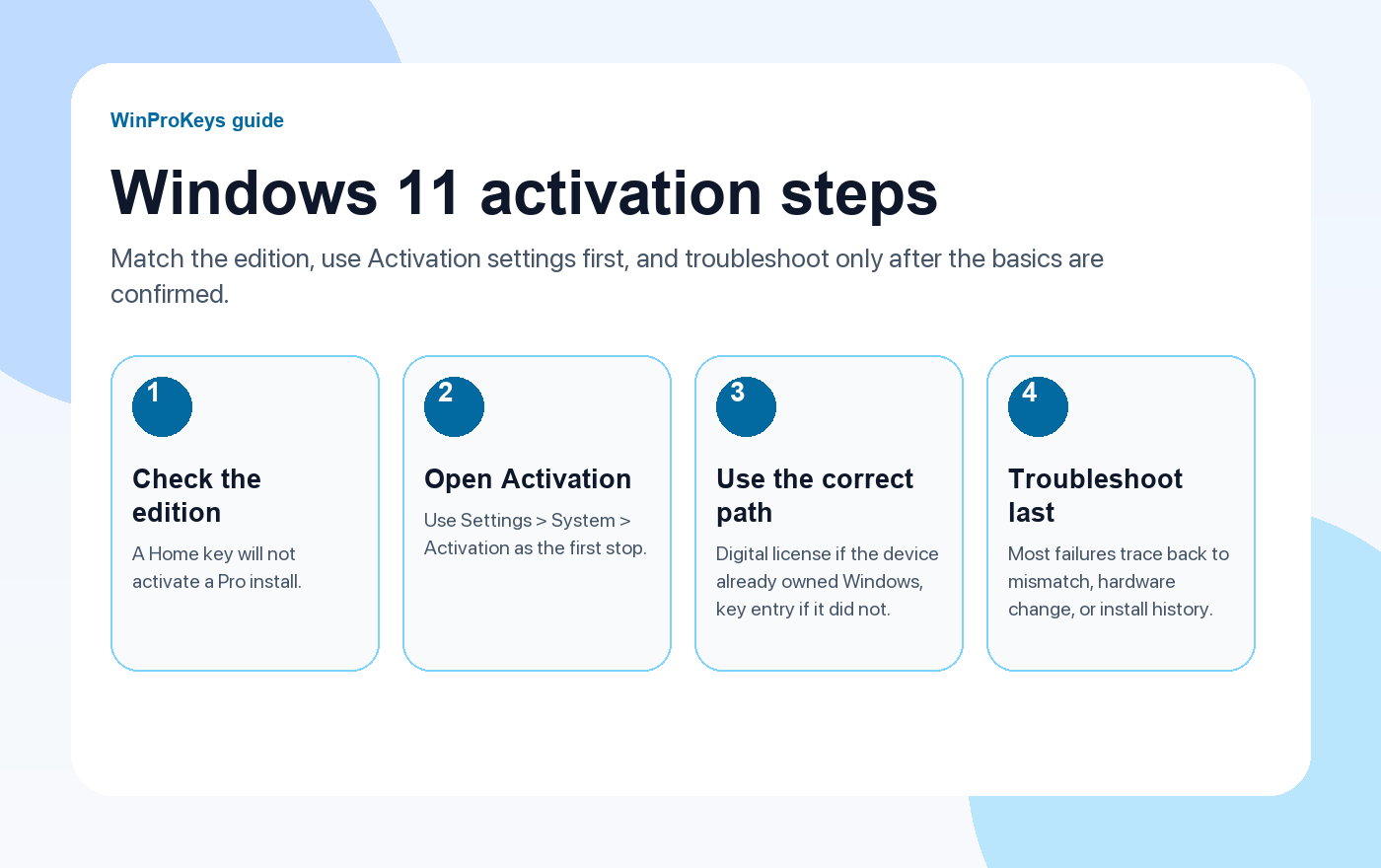
- Confirm which edition is installed right now.
- Make sure the device is online.
- Sign in with the Microsoft account that may already hold the digital license.
- Use an administrator account if Windows asks for permission.
The normal Settings path
- Open Settings > System > Activation.
- Select the option to change or enter a product key.
- Enter the 25-character key carefully.
- Let Windows validate the key and restart if the edition upgrade requires it.
What if the device already owned Windows?
If this same device previously ran the same activated edition, Windows may reactivate automatically after it goes online. That is especially common when the machine already had a digital license linked to the right Microsoft account. Do not rush into buying another key until you confirm whether the device already owns the edition you installed.
The most common reason activation fails
A Home key will not activate a Pro install. That one mistake explains a large share of failed activations. If you installed Pro on a machine that only owned Home, you either need to install the right edition or use a valid Pro upgrade path instead of forcing the wrong key through the wrong install.
| Symptom | Likely cause | Next page |
|---|---|---|
| Key rejected immediately | Wrong edition or typo | 0xC004C003 guide |
| Windows says no valid license found | Digital license did not reconnect or install history changed | 0x803F7001 guide |
| Activation broke after hardware change | The hardware signature changed and Windows needs reactivation | Activation error hub |
Frequently Asked Questions
Where do I activate Windows 11?
Start in Settings > System > Activation.
Why does the edition matter so much?
Because Windows checks whether the license matches the installed edition before it can finish activation.
Should I buy a new key before checking digital license history?
No. If the same device already owned the same edition, let Windows try the normal digital-license path first.
What if I still cannot activate it?
Move to the aktivierungsleitfäden and follow the guide for the exact error or scenario you are seeing.
Need the live product pages?
If you have finished the guide and need the current Windows or Office pages, use the shop as the source of truth for pricing, delivery details, and activation help.
Open the shopUse the next step that matches your setup
Stay with the Windows and Office routes we actively maintain most. Choose the guide, troubleshooting path, or hub that answers the next real question instead of jumping into an unrelated product page.
Use the live guide or product page as the source of truth for delivery, redemption, and post-sale support details.


6 thoughts on “How to Activate Windows 11 with a Product Key (Step-by-Step Guide)”
Comments are closed.