


Last Updated: يونيو 1, 2026
If you’re seeing Windows activation error 0x803F7001, you’re not alone. This error typically appears when Windows can’t find a valid license for your device. The good news? It’s usually fixable in a few steps.
In this guide, we’ll explain what causes error 0x803F7001 and walk you through proven solutions to get your Windows activated.
Related fixes
Open the next guide that matches the symptom
Most activation issues cluster around the same few causes. These links save time when the first fix does not solve the problem.
- Fix error 0xC004C003Use this when the key looks invalid, blocked, or already used.
- Remove the Activate Windows watermarkHelpful if the main symptom is the watermark rather than the code.
- Open the activation error hubSee the larger library of error-specific fixes.
- Check Windows product pagesUse this only after you confirm the existing license is the actual issue.
Short Answer: What 0x803F7001 Means
Windows activation error 0x803F7001 usually means Windows cannot find a valid digital license or product key for this device. Treat it as a license-state diagnosis first: check activation wording, product key vs digital license path, installed edition, hardware-change history, and private support evidence before deciding whether an order-specific review is needed.
Windows Activation Error 0x803F7001 Diagnostic Checklist
| Diagnostic step | What to check | Best next route |
|---|---|---|
| Confirm the exact 0x803F7001 message | Record whether Windows says it does not have a valid digital license or product key, or whether the wording changed after a retry. | Compare the wording with Microsoft activation-error context and the Windows activation error-code hub. |
| Check digital license vs typed product key | A linked digital license, a typed 25-character product key, and a skipped-key clean install are different activation paths. | Use Microsoft activation context, Microsoft product-key context, and the digital license vs product key checklist. |
| Match installed edition to the license | Windows Home, Pro, previous-edition installs, and edition changes can trigger no-valid-license wording when the installed edition does not match the license path. | Use the Home key vs Pro key mismatch checklist and the Windows 11 Pro activation checklist before repeating key entry. |
| Review hardware change or reinstall context | A motherboard replacement, refurbisher device, clean install, or Microsoft account change can make Windows stop finding a previous digital license. | Use the motherboard-change activation guide if the device changed before the error appeared. |
| Separate invalid-key wording from no-license wording | If the wording changes into blocked, invalid, already-used, or key-cannot-be-used language, switch to that route instead of staying on 0x803F7001. | Use the 0xC004C003 route checklist and the Windows activation troubleshooting decision tree. |
| Check post-purchase setup evidence | If this follows a recent order, confirm delivery, edition fit, activation attempt path, and exact non-sensitive error wording before asking for review. | Use the Windows key after-purchase setup checklist, Windows product key FAQ, and the safe Windows key seller checklist. |
| Escalate with private evidence only | Do not post full product keys, order emails, Microsoft account emails, payment details, or private screenshots in public comments or forums. | Use the private support evidence checklist before the replacement or refund review explainer. |
WinProKeys is an independent software-key reseller, not Microsoft. Microsoft pages are source context for Windows activation, activation-error, and product-key behavior; WinProKeys support pages are practical routes for error-code triage, edition fit, delivery context, and private order-specific review.
What Does Error 0x803F7001 Mean?
Error code 0x803F7001 indicates that Windows couldn’t find a valid license for your device. You’ll typically see a message like:
“We can’t activate Windows on this device as we don’t have a valid digital license or product key. If you think you do have a valid license or key, select Troubleshoot below. Error code: 0x803F7001”
This is different from error 0xC004C003, which relates to key validation failures. Error 0x803F7001 specifically means Windows can’t locate any license tied to your device.
Common Causes
- No product key entered — Windows was installed without entering a key, or the key was skipped during setup
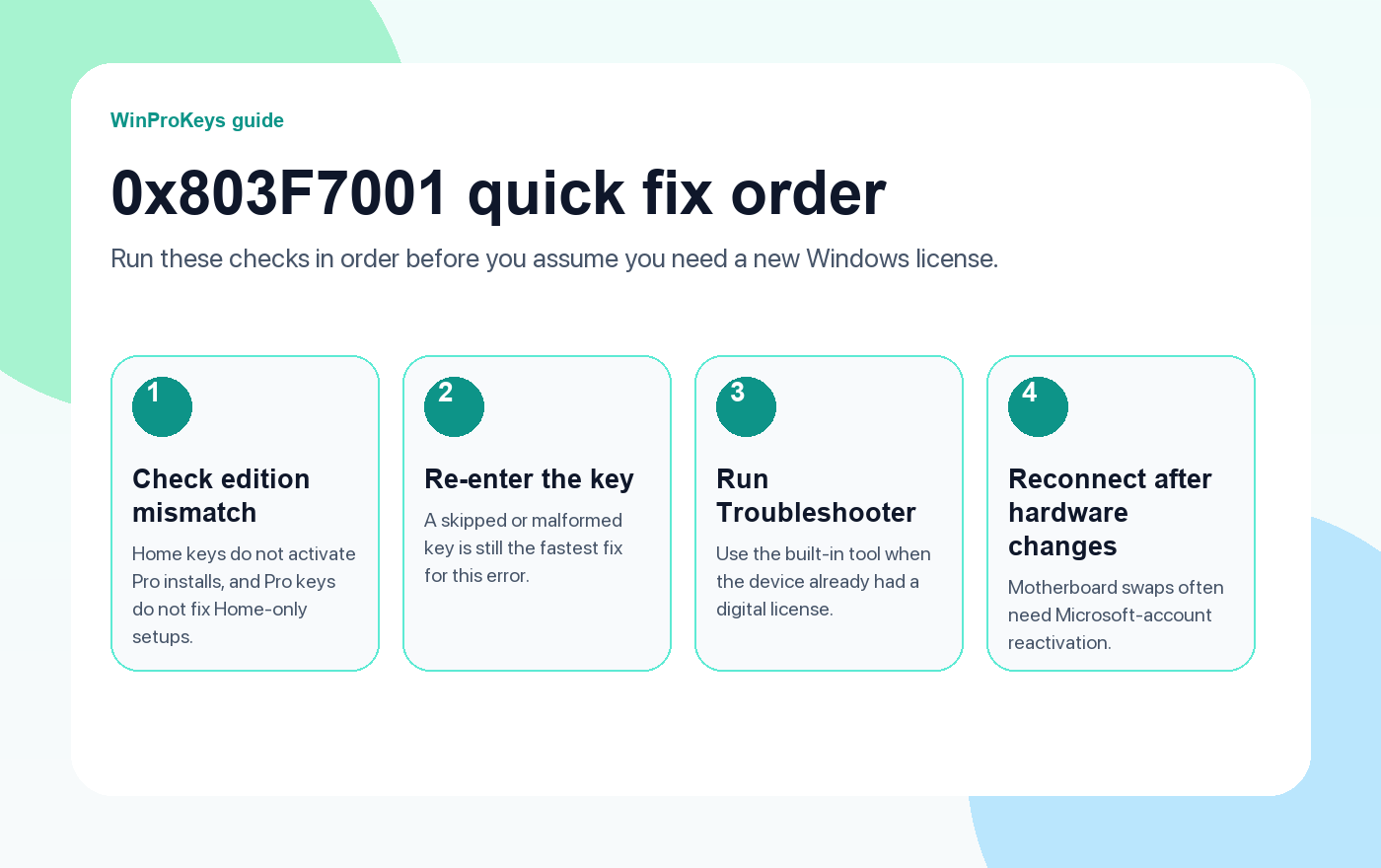
- Edition mismatch — You installed Windows Pro but have a Home license, or vice versa
- Hardware changes — Replacing your motherboard or making significant hardware changes can deactivate Windows
- Expired or revoked license — Trial licenses, volume licenses that expired, or keys that were deactivated
- Clean install without linking — Reinstalling Windows without first linking your license to a Microsoft account
How to Fix Error 0x803F7001
Method 1: Enter or Re-Enter Your Product Key
If you have a valid product key, entering it manually often resolves this error immediately:
- Press Windows + I to open Settings
- Go to System > Activation (Windows 11) or Update & Security > Activation (Windows 10)
- Click Change product key
- Enter your 25-character product key and click Next
- Follow the prompts to complete activation
If you confirm the device no longer has a valid key, compare the live Windows 11 Pro and Windows 10 Pro product pages instead of relying on copied price callouts.
Method 2: Run the Activation Troubleshooter
Windows includes a built-in troubleshooter that can automatically detect and fix activation issues:
- Open Settings > System > Activation
- Click Troubleshoot (only visible when Windows isn’t activated)
- If you recently changed hardware, select “I changed hardware on this device recently”
- Sign in with the Microsoft account linked to your digital license
- Select your device and click Activate
This method works best if you previously had a digital license linked to your Microsoft account.
Method 3: Verify Your Windows Edition
A common cause of 0x803F7001 is an edition mismatch. For example, if you have a Windows 10 Home key but installed Windows 10 Pro:
- Press Windows + I, then go to System > About
- Check the Edition field (e.g., Windows 11 Pro, Windows 10 Home)
- Compare this with the edition your product key is for
- If they don’t match, you’ll need either a matching key or to reinstall the correct edition
If you need to upgrade from Home to Pro, check our step-by-step activation guide for detailed instructions.
Method 4: Activate via Command Prompt
If the Settings method doesn’t work, try activating through Command Prompt:
- Right-click the Start button and select Terminal (Admin) أو Command Prompt (Admin)
- Type the following command and press Enter:
slmgr /ipk XXXXX-XXXXX-XXXXX-XXXXX-XXXXX(Replace the X’s with your actual product key)
- Wait for the confirmation dialog, then run:
slmgr /atoThis forces Windows to attempt online activation with the key you just entered.
Method 5: Check for Server-Side Issues
Sometimes Microsoft’s activation servers experience temporary outages:
- Visit the Microsoft Support page to check for known issues
- Wait a few hours and try activating again
- If the problem persists after 24 hours, the issue is likely on your end
After a Hardware Change
If you recently replaced your motherboard or made major hardware changes, Windows may need reactivation. Here’s what to do:
- Before making changes: Link your Windows license to your Microsoft account via Settings > Activation > Add an account
- After changes: Run the Activation Troubleshooter and sign in with the same Microsoft account
- If that fails: Contact Microsoft Support for manual reactivation
For future reference, always link your license to a Microsoft account before making hardware changes. This makes reactivation much simpler.
Still Seeing the Error?
If none of the methods above work, you likely need a new product key. This is common when:
- Your original key was part of a volume license that expired
- The key was already used on another device
- You installed Windows without ever entering a key
If the old license is no longer usable, these live product pages are the cleanest next step:
- مفتاح منتج ويندوز 11 برو — for devices already running Pro
- مفتاح منتج ويندوز 10 برو — for older hardware or Windows 10 installs
- Windows 11 Pro and Office 2021 routes — if you need both licenses on the same machine
Related Activation Guides
- Fix Error 0xC004C003 — License Validation Failed
- Remove the “Activate Windows” Watermark
- Fix Windows 11 Upgrade Activation Failed
- Fix Retail Product Key Not Working
- Fix Office Activation Error 0xC004F074
Advanced Fixes (If the Basic Steps Don’t Work)
Method 6: Check Your License Status with slmgr
You can verify whether Windows sees any license on your device by using the Software Licensing Management Tool (slmgr):
- Open Command Prompt (Admin)
- Run:
slmgr /dlvThis displays detailed license information. If it shows Notification أو Unlicensed, Windows is not activated and you’ll need to enter a valid key or re-link your license.
Method 7: Reset the Licensing Store
If the activation store is corrupted, resetting it can help:
- Open Command Prompt (Admin)
- Run:
slmgr /upk
slmgr /cpky
slmgr /ipk XXXXX-XXXXX-XXXXX-XXXXX-XXXXX
slmgr /ato
This removes the old key, clears cached activation data, then re-enters the key and reactivates.
Method 8: Try Phone Activation
If online activation fails, you can activate by phone:
- Press Windows + R, type
slui 4, and press Enter - Select your country/region
- Call the provided phone number
- Enter the installation ID and follow the automated prompts
Phone activation is especially helpful if Microsoft’s servers are overloaded or if your device has limited internet access.
Common Mistakes to Avoid
- Using the wrong edition key — Windows Home keys won’t activate Pro editions (and vice versa)
- Copy-paste errors — Always double-check the 25-character key format
- Attempting too many activations quickly — This can trigger temporary blocks
- Skipping account linking — Always link a digital license to your Microsoft account before hardware changes
الأسئلة الشائعة
Does error 0x803F7001 mean my key is invalid?
Not necessarily. This error usually means Windows can’t find a valid license on the device. It could be an edition mismatch, a missing key, or a license that was never linked to your account.
Can I fix 0x803F7001 without reinstalling Windows?
Yes. Most users fix it by entering a valid key, running the activation troubleshooter, or using phone activation.
Is it safe to buy a Windows key online?
Yes—if you buy from a reputable seller. WinProKeys provides genuine product keys, instant delivery, and a published refund/replacement policy.
Need a Genuine Key?
- Windows Keys · مفاتيح المكتب · Shop All
- Windows: Server 2022 Standard · Server 2019 Standard
- More help: Windows Guides · Activation Error Codes
Need a Genuine Windows Key?
If you need a genuine Windows product key after fixing this error, check out our Windows Keys collection or browse مفاتيح المكتب. We offer Windows 11 Pro, Windows 10 Pro, and more at with setup guidance and post-sale help.
Compare current Windows and Office routes: Win 11 Pro + Office 2021 أو Win 10 Pro + Office 2019. Visit our shop to see all products.
More help: Windows Guides · Activation Error Codes
Need the live product pages?
If you have finished the guide and need the current Windows or Office pages, use the shop as the source of truth for pricing, delivery details, and activation help.
Open the shopStill need the right Windows edition?
If the error points to an edition mismatch or a license that cannot be recovered, compare the current Windows routes instead of guessing with another random key.
Use the live product pages for current pricing, delivery details, and activation help.

