



Last Updated: يونيو 1, 2026
Short Answer
To activate Windows 10 Pro, the installed edition must be Windows 10 Pro and the product key must match Pro. A Windows Home install will not activate with a Pro key until the edition is changed correctly.
- Start with the installed Windows edition and activation status.
- Use Microsoft Support pages for Windows activation behavior and product-key context.
- Use WinProKeys support for order, delivery, setup, and common troubleshooting context.
Windows 10 Pro Product Key Activation Checklist
Use this checklist before entering a Windows 10 Pro product key or buying another key. The right activation path depends on installed edition, Windows 10 Settings path, product-key versus digital-license state, Windows 10 support context, exact activation wording, and private order evidence.
| Activation checkpoint | What to verify | Best next route |
|---|---|---|
| Confirm Windows 10 Pro is the installed edition | A Windows 10 Pro key should be entered only after the device is actually on Windows 10 Pro, not Home, Enterprise, or Education. | Use Microsoft activation context, Microsoft Home-to-Pro upgrade context, the Windows 10 Pro vs Home guide, and the Home key vs Pro mismatch checklist. |
| Use the Windows 10 activation path | On Windows 10, use Settings > Update & Security > Activation > Change product key, then enter the 25-character key privately. | Compare Microsoft activation context and Microsoft product-key context with the after-purchase Windows key checklist. |
| Separate key type from activation method | A typed product key, digital license, OEM firmware license, retail-style key, Volume/KMS context, and linked Microsoft account can each point to a different next step. | Use the Windows product key types guide, digital license vs product key guide, Windows product key FAQ, and Windows key hub. |
| Check the Windows 10 support context | Windows 10 support has ended for standard consumer use, so staying on Windows 10 Pro is mainly a compatibility bridge when the device or workflow is not ready for Windows 11. | Use Microsoft Windows 10 support status, the Windows 10 vs Windows 11 upgrade decision guide, Windows 11 hardware checklist, and the Windows 11 compatibility checker. |
| Route exact activation wording before retrying | If Windows shows 0xC004F050, 0xC004C003, 0x803F7001, no-valid-license wording, blocked-key wording, or already-used wording, diagnose that message before trying random keys. | Use Microsoft activation-error context, the Windows activation troubleshooting decision tree, Windows activation error-code hub, 0xC004F050 route, 0xC004C003 route, 0x803F7001 route, and the product key not working guide. |
| Keep order-specific evidence private | Do not post full product keys, order emails, Microsoft account emails, payment details, or screenshots in public comments, forums, AI chats, or creator threads. | Use the private support evidence checklist, How WinProKeys works, the delivery policy, after-sales policy, and contact WinProKeys support when an order-specific review is needed. |
WinProKeys is an independent software-key reseller, not Microsoft. Microsoft Support pages are source context for Windows activation, product-key lookup, Home-to-Pro upgrade, Windows 10 support status, and activation-error behavior; WinProKeys pages explain edition fit, digital-license checks, after-purchase setup, exact error routing, delivery, after-sales, and private support review.
If you just purchased a Windows 10 Pro key and want a clean activation process, this guide walks you through everything in order.
Before You Start
- Make sure your PC is connected to the internet.
- Confirm your edition is Windows 10 Pro (not Home).
- Keep your product key ready.
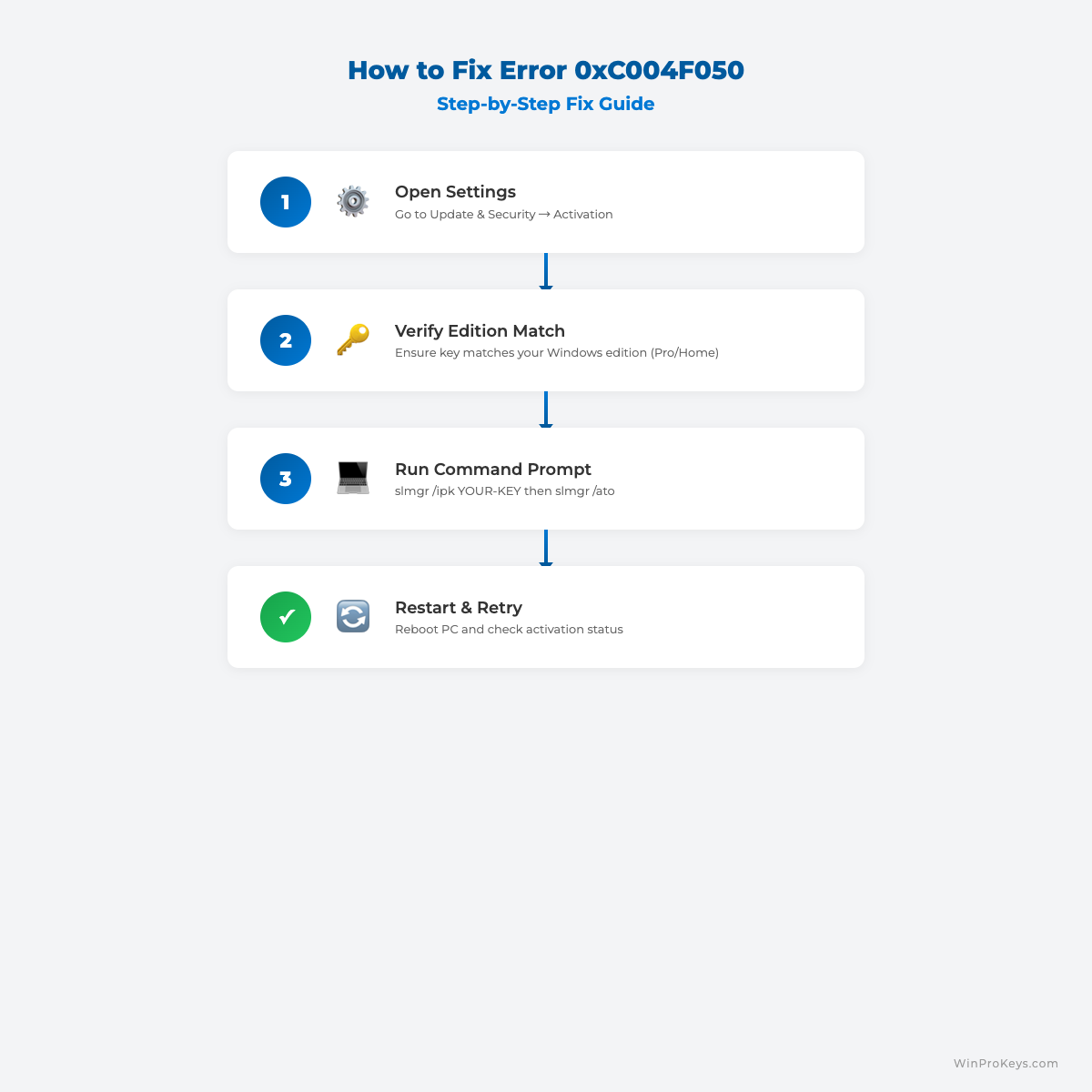
Step 1: Open Activation Settings
- Click Start and open Settings.
- Go to Update & Security.
- Click Activation.
Step 2: Enter Your Product Key
- Click Change product key.
- Enter your 25-character key.
- Click Next, then Activate.
Step 3: Confirm Activation Status
In Activation, you should see: Windows is activated.
Common Activation Errors and Quick Fixes
Error 0xC004F050: Check edition fit and product-key wording first.
Error 0xC004F074: Check organization/KMS context, network path, time sync, and activation-server reachability.
Pro Tips
- Keep your purchase email for future reference.
- Link your license to your Microsoft account when possible.
- Run Windows Update after activation.
Before You Buy Again
If activation is not finished yet, confirm Windows 10 Pro edition, digital-license state, and exact activation wording before choosing any purchase route. Keep order context private and use activation support if a WinProKeys order needs review.
Visual Fix Guide
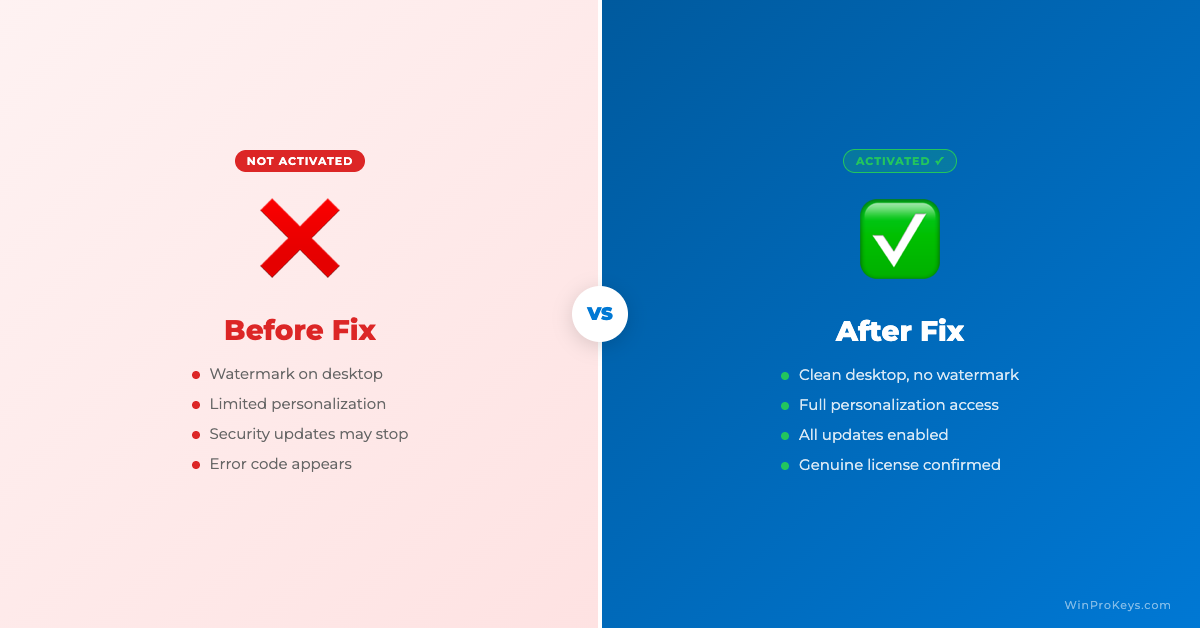
Before vs After Activation
Running into an error during activation? Check our complete guide to Windows activation error codes for step-by-step fixes.
Next Steps After Windows 10 Pro Activation
If activation succeeds, keep your purchase email, run Windows Update, and avoid entering the same key on a second active device. If activation fails, route edition, license state, and exact error wording before buying another key.
- Windows 10 Pro vs Home if you are not sure the installed edition matches the key.
- Home key vs Pro mismatch if the installed edition and key type do not line up.
- Digital license vs product key if Windows shows an account-linked or existing-license state.
- Windows activation error codes if Windows gives a specific code or message.
- Private support evidence checklist if a WinProKeys order needs review.
Frequently Asked Questions
Where do I enter a Windows 10 Pro product key?
Go to Settings > Update & Security > Activation, then use Change product key. Confirm the installed edition is Windows 10 Pro first.
Can I activate Windows 10 Pro after a clean install?
Yes, if the key matches Windows 10 Pro and the key has not been used outside its allowed scope. Keep your order email in case support needs context.
What if Windows 10 says the key did not work?
Check the edition, internet connection, time settings, and exact error code. If you bought from WinProKeys, use private support and send only the order reference, installed edition, exact error wording, and device context needed for review.
Source and Support Links
Use Microsoft Support pages for general product behavior and activation rules. Use WinProKeys pages for store delivery, order support, and reseller-specific guidance.
Frequently Asked Questions
What should I check first for How to Activate Windows 10 Pro with a Product Key?
Check the installed Windows edition, activation status, recent hardware changes, and the exact error message. Home and Pro keys are not interchangeable.
Is WinProKeys operated by Microsoft?
No. WinProKeys is an independent software-key reseller and is not operated by Microsoft. Microsoft Support pages are the primary source for Windows activation behavior.
What should I send support if activation does not work?
Use private support and send the installed Windows edition, exact error code, visible wording, device context, and order reference. Do not post full product keys, order emails, Microsoft account emails, payment details, or private screenshots publicly.
Need the live product pages?
If you have finished the guide and need the current Windows or Office pages, use the shop as the source of truth for pricing, delivery details, and activation help.
Open the shopChoose the product path that matches your device
These are the six Windows and Office routes we actively support most. Pick by edition fit first, then use the live product page for redemption steps, delivery timing, and post-sale support details.
If you are still deciding, use the Windows hub أو Office hub before checkout.


One thought on “How to Activate Windows 10 Pro with a Product Key”
Comments are closed.