


Last Updated: 6 月 1, 2026
Short Answer
Short answer: choose the key around the Windows version and edition you will actually run, not only the lowest price. Confirm whether the PC is staying on Windows 10 Pro, moving to Windows 11 Pro, or already has a digital license path before buying or entering a new key.
Microsoft Support Sources To Check First
WinProKeys is an independent software-key reseller, not Microsoft. Use this guide as a diagnostic checklist before buying, retrying activation, or contacting support.
Related WinProKeys Support Paths
- Activate Windows 11 Pro with a product keyUse this when the target machine is already on Windows 11 Pro.
- Digital license vs product keyUse this before buying if the PC may already have an activation record.
Choosing the right Windows license in 2026
If you are building a new PC or upgrading an older one, one of the most common questions is simple: should you buy a Windows 11 Pro key or a Windows 10 Pro key? Both editions are professional-grade, both support business features, and both can run most productivity workloads. But they are not identical, especially when you look at long-term updates, hardware requirements, and future software support.
This guide explains the real differences in plain language, so you can choose the best option for your budget and use case.
What both versions include
Windows 10 Pro and Windows 11 Pro both include advanced features compared with Home editions. You get BitLocker encryption, Remote Desktop host, Hyper-V virtualization, Group Policy support, and domain join capabilities. For freelancers, IT users, power users, and small business teams, these tools matter every day.
If all you need is basic browsing and media, Home is often enough. But for serious work, Pro is usually worth it.
Key differences that matter before you buy
1) Hardware compatibility
Windows 10 Pro works on a wider range of older hardware. Windows 11 Pro has stricter requirements, including TPM 2.0 and newer CPU support. If your current machine is a few years old, Windows 10 Pro may install more easily.
2) User experience and workflow
Windows 11 Pro introduces a cleaner interface, better snap layouts, and stronger multi-monitor handling. If you multitask heavily with Office apps, browser windows, and communication tools, Windows 11 usually feels smoother.
3) Security baseline
Both are secure when updated, but Windows 11 was designed with modern security defaults in mind. Features tied to virtualization-based security and hardware protections are easier to use on compatible devices.
4) Lifecycle and future support
For long-term planning, newer platforms generally receive strategic feature focus first. If you are buying a key for a machine you plan to keep for years, Windows 11 Pro is often the safer long-horizon choice.
Who should buy Windows 10 Pro in 2026?
- You have older but still stable hardware.
- You run legacy software with strict compatibility requirements.
- You want to minimize migration time right now.
In that case, a Windows 10 Pro Product Key can be a practical purchase that keeps your workflow stable.
Who should buy Windows 11 Pro in 2026?
- You are building or buying a newer PC.
- You want the latest interface and productivity improvements.
- You prefer stronger default security posture.
- You are planning for long-term software support.
For these users, a Windows 11 Pro Product Key is usually the better investment.
Activation basics for both versions
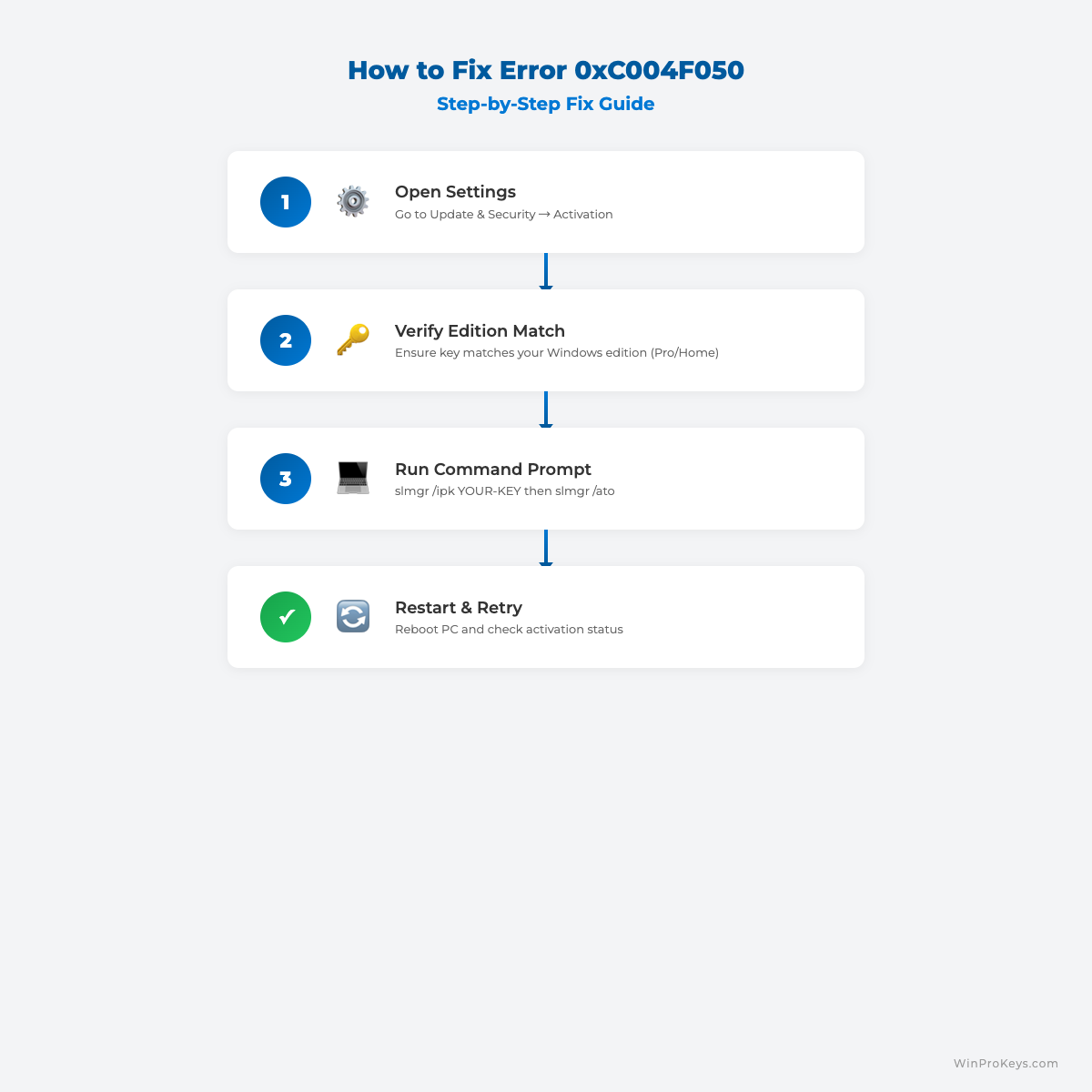
After purchase, activation is straightforward: open Settings, go to Activation, enter your product key, and complete online validation. Keep your key in a secure place and make sure you are installing the matching edition (Pro key for Pro edition).
If you reinstall Windows later on the same machine, having a valid key and account-linked activation history helps simplify recovery.
Price-to-value perspective
Many buyers focus only on the lowest number. A better approach is to compare value over the life of your PC. A cheaper key that does not fit your hardware or future needs can cost more in downtime, migration effort, or extra upgrades. Pick the version aligned with how long you plan to keep the system and what workloads you run.
Final recommendation
If your hardware fully supports it, Windows 11 Pro is the default recommendation for most users in 2026. If you depend on older hardware or legacy apps, Windows 10 Pro remains a solid choice today.
Ready to activate? Explore Windows licenses, compare options, and choose the key that matches your setup. For quick delivery and easy onboarding, check Windows 11 Pro and Windows 10 Pro now.
Visual Fix Guide
Before vs After Activation
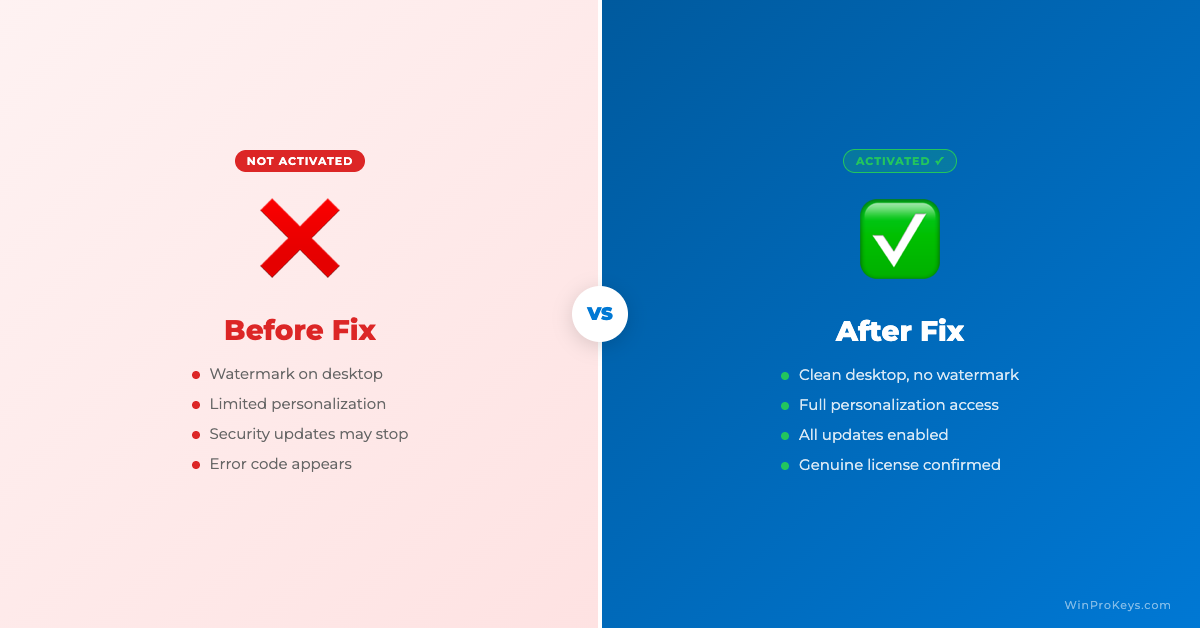
After purchasing, if you encounter any activation issues, our Windows activation error codes guide covers every common error with solutions.
Frequently Asked Questions
Should a new PC use Windows 11 Pro instead of Windows 10 Pro?
For most new PCs, yes. Windows 11 Pro is the better long-term choice because Windows 10 standard support ended on October 14, 2025.
When does Windows 10 Pro still make sense?
It can still make sense for older hardware, specific software compatibility, or a repair workflow that needs Windows 10 before a later upgrade.
Can I upgrade from Windows 10 Pro to Windows 11 Pro later?
Usually yes if the PC meets Windows 11 requirements. Check TPM 2.0, Secure Boot, CPU support, RAM, and storage before planning the upgrade.
Choose the product path that matches your device
These are the six Windows and Office routes we actively support most. Pick by edition fit first, then use the live product page for redemption steps, delivery timing, and post-sale support details.
If you are still deciding, use the Windows hub or Office hub before checkout.

