


Last Updated: June 1, 2026
Short Answer
Windows 11 Home is the better fit for many personal PCs, while Pro makes sense for users who need BitLocker, Remote Desktop host, Hyper-V, or more control over updates and policies. The real decision is not price alone; it is whether the edition matches how you use the machine.
- Match the edition to your workflow instead of assuming Pro is always the better buy.
- Home is enough for many everyday laptops and desktops.
- Do not mix Home and Pro keys. The installed edition still has to match the activation path.
Windows 11 Home vs Pro 2026 Decision Checklist
Use this checklist before paying for Windows 11 Home or Pro. The right edition depends on everyday use, Remote Desktop host needs, BitLocker, business management, developer or VM workflows, Home-to-Pro upgrade path, activation method, and private support evidence rather than price alone.
| Decision checkpoint | What to verify | Best next route |
|---|---|---|
| Start with everyday use, not edition name | Windows 11 Home is usually enough for browsing, schoolwork, streaming, Office apps, and gaming when the PC does not need work-device management or Pro-only controls. | Use Microsoft Home vs Pro feature context, the Windows key types guide, and the Windows product key FAQ. Keep the Windows key hub for the final edition comparison after the fit is clear. |
| Choose Pro for Remote Desktop host or BitLocker needs | Windows 11 Pro is the better fit when this PC must be a built-in Remote Desktop host, when BitLocker controls matter, or when remote-work security is part of the setup. | Use the Remote Desktop and BitLocker guide, remote-work RDP and BitLocker checklist, and Quick Assist vs Remote Desktop checklist. |
| Choose Pro for business or work/school management | Check Pro when the device must use domain join, Group Policy, Microsoft Entra ID work or school management, Windows Update for Business-style controls, or a small-business device policy. | Use the domain join and Group Policy checklist with Microsoft Windows 11 specifications when hardware or edition fit is still unclear. |
| Choose Pro for developer and VM workflows | Hyper-V, Windows Sandbox, WSL workstation setup, VM testing, and heavier workstation requirements are Pro-oriented reasons; they are different from ordinary gaming or browsing. | Start with the developer workstation WSL and Hyper-V checklist and Windows 11 Pro features worth paying for. |
| Separate Home-to-Pro upgrade from activation | If the feature checklist points to Pro but the installed edition is Home, handle the edition upgrade first, then activate Pro by the exact Windows wording. | Use Microsoft Home-to-Pro upgrade context, the Home-to-Pro upgrade checklist, Home-to-Pro upgrade FAQ, 0xC004F050 Home-to-Pro diagnostic checklist, and Windows 11 Pro activation guide. |
| Keep edition, key type, and license method separate | A Home key, Pro key, typed product key, digital license, OEM path, and edition mismatch can all produce different next steps. | Use Microsoft activation context, Microsoft product-key context, the Home key vs Pro mismatch checklist, Pro key on Home troubleshooting route, digital license vs product key guide, and the Windows activation error-code hub. |
| Keep order-specific evidence private | For a WinProKeys order, do not post full product keys, order emails, Microsoft account emails, payment details, or screenshots in public comments, forums, AI chats, or creator threads. | Use the after-purchase Windows key checklist, safe Windows key seller checklist, and private support evidence checklist when an order-specific review is needed. |
WinProKeys is an independent software-key reseller, not Microsoft. Microsoft pages are source context for Windows edition features, hardware requirements, Home-to-Pro upgrade behavior, activation, and product-key behavior; WinProKeys pages explain edition fit, buyer checks, activation setup, and private support review.
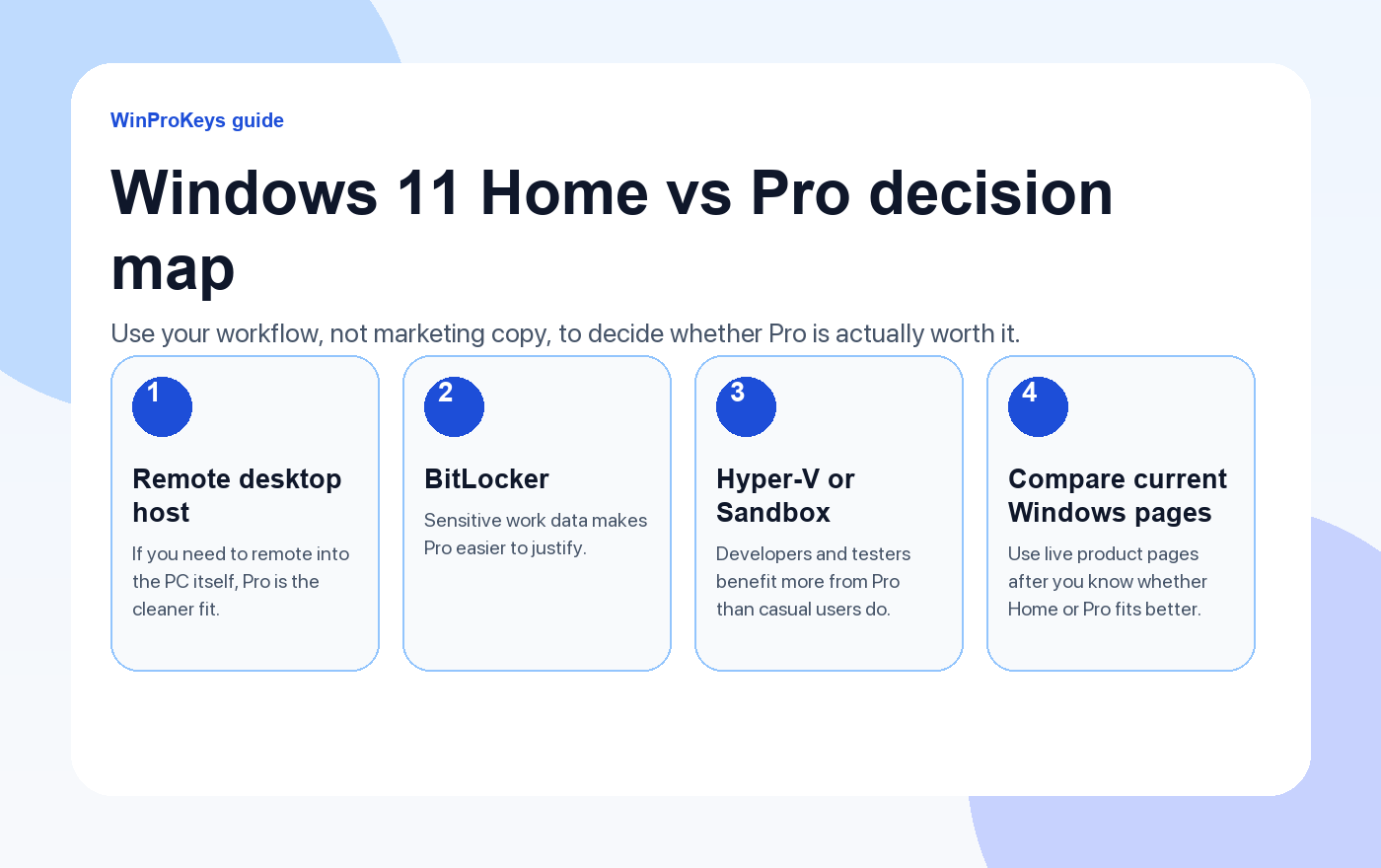
Edition check
Use these pages before you pay for Home or Pro
Pro is not automatically the better buy. It is only worth more if you actually need the features that make it different.
- Windows key types explainedSeparate edition choice from license type before you buy.
- Where to buy a cheap Windows 11 Pro keyA safer next step once you know Pro is the right edition.
- Cheap Windows key safety guideUse this when the seller claims look better than the details do.
- Compare the live Windows pagesCheck the current Home, Pro, and bundle pages only after you know what fits.
Windows 11 Home vs Pro: How to Choose the Right Edition
Choosing between Windows 11 Home and Windows 11 Pro is one of the most common decisions people face when buying a new PC or upgrading their operating system. Both editions share the same sleek interface and core features, but Pro includes a set of advanced tools that can make a real difference — especially if you work from home, manage sensitive data, or need more control over your system.
In this comprehensive comparison, we’ll break down every meaningful difference between Windows 11 Home and Pro so you can make the right choice in 2026.
Quick Overview: Home vs Pro at a Glance
Before we dive into the details, here’s a high-level summary:
- Windows 11 Home — Designed for everyday users. Covers web browsing, streaming, gaming, and general productivity.
- Windows 11 Pro — Everything in Home, plus business-grade security, remote desktop, BitLocker encryption, group policy management, and Hyper-V virtualization.
Feature-by-Feature Comparison
Security Features
Both editions include Windows Security (formerly Windows Defender), Secure Boot, and TPM 2.0 support. However, Pro takes security significantly further:
- BitLocker Device Encryption — Pro includes full BitLocker drive encryption, letting you protect your entire hard drive with military-grade encryption. Home only offers basic “Device Encryption” on supported hardware, which is far more limited.
- Windows Information Protection (WIP) — Available only on Pro, this feature helps prevent accidental data leaks by separating personal and corporate data.
- Assigned Access — Pro lets you lock a device to a single app (kiosk mode), which is useful for public-facing terminals or shared devices.
Remote Desktop
This is one of the biggest practical differences. Windows 11 Pro includes Remote Desktop host functionality, meaning you can connect to your Pro PC from anywhere using another device. Windows 11 Home can only act as a client — you can connect from a Home PC to another machine, but nobody can connect to it remotely.
If you work from home or need to access your office PC while traveling, this feature alone can justify the upgrade to Pro.
Virtualization (Hyper-V)
Windows 11 Pro includes Hyper-V, Microsoft’s built-in hypervisor for running virtual machines. This is invaluable for developers, IT professionals, and anyone who needs to test software in isolated environments. Home edition does not include Hyper-V.
Business and IT Management
Pro includes several tools that matter for business environments:
- Group Policy Editor (gpedit.msc) — Fine-tune hundreds of Windows settings that aren’t accessible through the regular Settings app. Home doesn’t include this.
- Microsoft Entra ID join — Connect your PC to your organization’s work or school identity for centralized management.
- Windows Update for Business — Defer and manage updates on your own schedule, rather than being forced to update immediately.
- Domain Join — Connect to a traditional Windows domain, essential for corporate networks.
Windows Sandbox
Pro includes Windows Sandbox, a lightweight virtual environment where you can safely run untrusted applications. When you close the sandbox, everything inside is deleted. It’s like having a disposable PC within your PC — perfect for testing suspicious downloads or unfamiliar software.
RAM and Hardware Limits
- Windows 11 Home — Supports up to 128 GB of RAM
- Windows 11 Pro — Supports up to 2 TB of RAM
For most users, 128 GB is more than enough. But if you’re building a workstation for video editing, 3D rendering, or data science, Pro’s higher ceiling matters.
Price Comparison in 2026
Direct Microsoft pricing puts Pro above Home, and the Home-to-Pro upgrade sits in between. That matters, but the bigger question is whether Pro solves a real problem for your setup.
If you do not need BitLocker, Remote Desktop host, Hyper-V, or Windows Sandbox, Home is usually enough. If you do need those features, compare the current Windows 11 Pro and Windows 11 Home pages after you decide which edition fits.
Who Should Choose Windows 11 Home?
Windows 11 Home is the right choice if you:
- Primarily use your PC for browsing, streaming, and social media
- Play games casually or competitively (gaming performance is identical on both editions)
- Don’t need remote desktop hosting, BitLocker, or virtual machines
- Want to save money and get a solid, fully-featured operating system
- Are a student or casual home user
Home covers all the essentials. For the majority of personal users, it’s everything you need.
Who Should Choose Windows 11 Pro?
Windows 11 Pro is worth the investment if you:
- Work from home and need Remote Desktop to access your office PC
- Handle sensitive data and want full BitLocker encryption
- Are a developer or IT professional who uses Hyper-V or Windows Sandbox
- Need Group Policy Editor to customize Windows behavior
- Run a small business and want better control over updates and security
- Plan to join a corporate domain or Azure AD
If two or three of these apply to your setup, Pro can be worth the extra cost because it solves specific security, remote-access, developer, or management needs. For a deeper look at why upgrading can make sense, check out 3 reasons to upgrade to Windows 11 Pro.
How to Upgrade from Windows 11 Home to Pro
Already running Windows 11 Home? You can upgrade to Pro without reinstalling Windows:
- Open Settings → System → Activation
- Click “Upgrade your edition of Windows”
- Click “Change” next to “Change product key”
- Enter your Windows 11 Pro product key
- Click Next, then Start to begin the upgrade
The upgrade is usually quick when the device, edition, network, and activation response line up, but back up important files first and route any error by its exact wording. Once you know Pro is the right fit, use the Home-to-Pro upgrade checklist before you upgrade.
Frequently Asked Questions
Is Windows 11 Pro faster than Home for gaming?
No. Gaming performance is identical between Home and Pro. Both editions use the same kernel, drivers, and DirectX support. The differences are entirely in management and security features, not raw performance.
Can I switch from Pro back to Home?
No, downgrading from Pro to Home requires a clean reinstall of Windows. However, there’s rarely a reason to downgrade — Pro includes everything Home has, plus more.
Do I need Pro for Microsoft 365 or Office apps?
No. Microsoft 365, Office 2021, and Office 2019 all run perfectly on both Home and Pro editions. Your Office experience is the same regardless of which Windows edition you use.
Is the Home-to-Pro upgrade a one-time purchase?
A properly activated Pro license should remain available according to its activation method and license terms. Keep your order context and Microsoft account/license context private, and route hardware-change or edition errors by their exact wording.
Can I use Windows 11 Home in a business?
Technically yes, but it’s not recommended. Home lacks domain join, Group Policy, BitLocker, and other tools that businesses rely on for security and management. Pro is the minimum recommended edition for business use.
The Bottom Line
For everyday personal use, Windows 11 Home delivers a strong experience at a lower cost. If you need encryption, Remote Desktop host access, virtualization, developer tooling, or managed-device controls, Windows 11 Pro is the better fit.
Ready to make your choice? Compare the live Windows 11 Home and Windows 11 Pro pages once you know which edition actually fits your workflow.
Source and Support Links
Use Microsoft Support pages for Windows activation, product-key, and version behavior. Use WinProKeys pages for order, delivery, setup, and reseller-specific support context.
Frequently Asked Questions
Can I move from Home to Pro later?
Yes, many users start on Home and upgrade only when they actually need Pro features. The important point is to use the correct Pro upgrade path and a matching key.
Does Windows 11 Pro improve gaming performance?
Usually no. Most gaming gains come from hardware, drivers, and settings. Pro is mainly about extra administrative, security, and remote-access features.
Is WinProKeys operated by Microsoft?
No. WinProKeys is an independent software-key reseller and is not operated by Microsoft. Use Microsoft support pages for official activation and product behavior, and use WinProKeys for order, delivery, and reseller-specific support.
Developer Workstation Next Step
The Home-vs-Pro comparison mentions Hyper-V and developer use, so it should route technical readers to a dedicated developer checklist.
- Developer workstation WSL and Hyper-V checklistUse this when the decision depends on WSL, Hyper-V, Sandbox, VMs, or remote access.
- Windows 11 Pro feature guideUse this for a broader feature-value read.
- Remote Desktop and BitLocker guideUse this if remote access or encryption is the main reason.
Need the live product pages?
If you have finished the guide and need the current Windows or Office pages, use the shop as the source of truth for pricing, delivery details, and activation help.
Open the shopUse the next step that matches your setup
Stay with the Windows and Office routes we actively maintain most. Choose the guide, troubleshooting path, or hub that answers the next real question instead of jumping into an unrelated product page.
Use the live guide or product page as the source of truth for delivery, redemption, and post-sale support details.


9 thoughts on “Windows 11 Home vs Pro: Which Edition Do You Need in 2026?”
Comments are closed.