


Last Updated: مايو 30, 2026
Short Answer
After installing Windows 11 on a new PC, check drivers, Windows Update, activation status, security settings, and the apps you need. If you bought a product key, save the delivery email and confirm the installed edition before activation.
- Start with the installed Windows edition and activation status.
- Use Microsoft support pages for official activation behavior.
- Use WinProKeys support for order, delivery, setup, and common troubleshooting context.
A clean install feels fast even when the boring setup jobs are still unfinished. That is why many new PCs end up half-configured: the desktop looks ready, but the activation state is unclear, Windows Update is only half done, and the restore path was never set up. The best first-day setup is boring in the right order.
Day-one setup
Use these pages while you finish a new Windows 11 build
The right license, the right update order, and the right apps save more time than a dozen cosmetic tweaks on day one.
- How to activate Windows 11Use this first if the machine is installed but not yet activated cleanly.
- Windows 11 Home Product KeyA common fit for personal PCs, family laptops, and study setups.
- مفتاح منتج ويندوز 11 بروUse this if the device needs Pro features from day one.
- Office 2021 Professional PlusA one-time Office option if you want the classic apps without Microsoft 365.
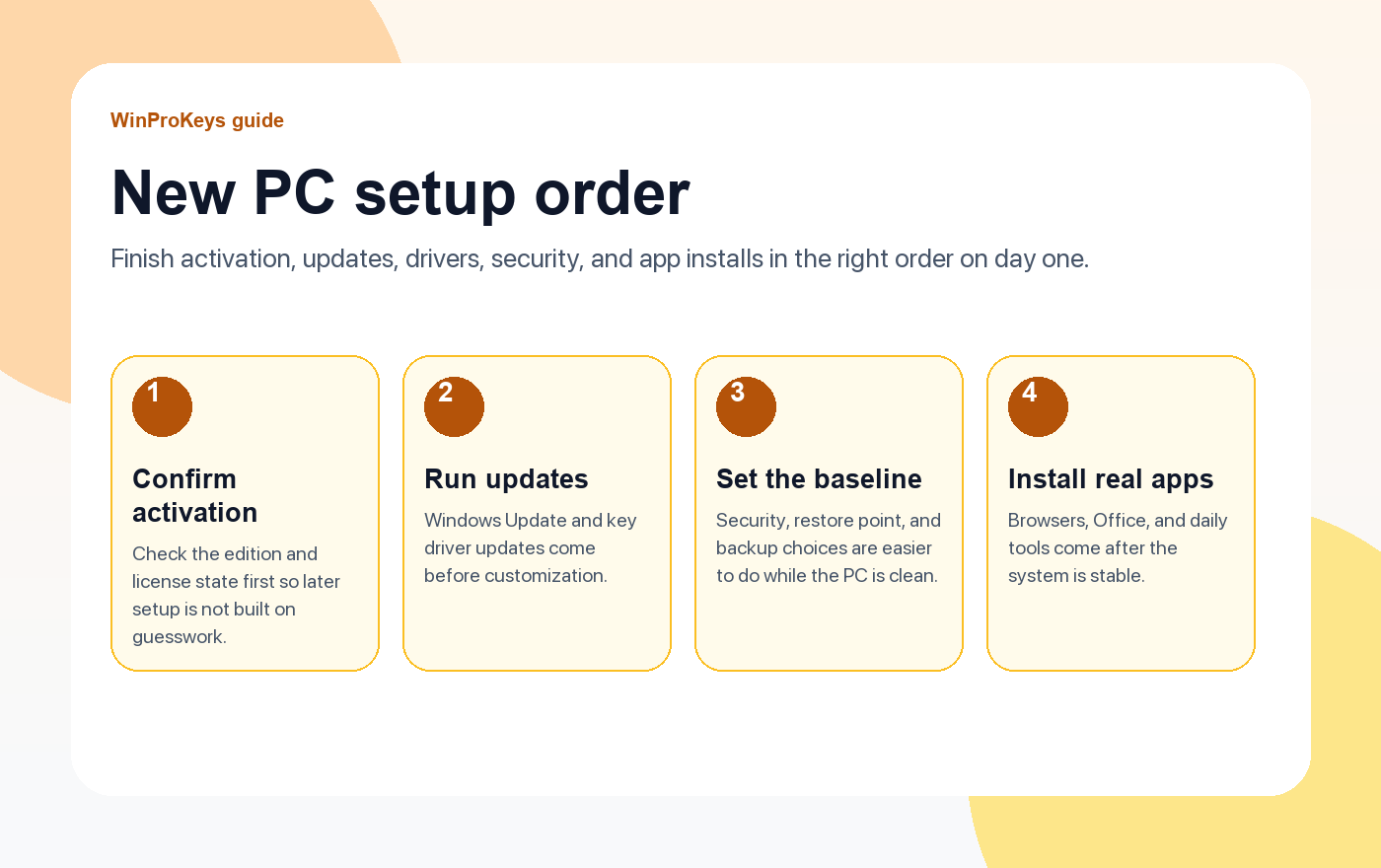
First 30 minutes: get the system into a known-good state
- Open Activation and confirm the machine is on the right edition and the license state makes sense.
- Run Windows Update until the core updates stop moving.
- If this is a custom build or gaming PC, install the chipset, graphics, and motherboard support drivers from the proper vendor pages.
- Restart once and recheck Windows Update before you start decorating the desktop.
Same-day tasks that are worth doing while the PC is still clean
- Set the backup direction. Decide whether OneDrive, another cloud service, or local backup is the main path.
- Create a restore point. It is easy to skip and useful later.
- Check security defaults. Make sure Windows Security, firewall, and sign-in choices match how the PC will be used.
- Remove junk you already know you do not want. A clean machine is easier to keep clean.
Install the apps that actually matter
After the system is updated and activated, install the browser, password manager, messaging apps, and work tools you use every week. If you want the classic Office apps without a recurring Microsoft 365 plan, compare Office 2021 Professional Plus with Office 2019 Professional Plus, then read Office 2021 vs 2024 أو Office 2021 vs Microsoft 365 before you pick a lane.
| Task | Why it belongs early |
|---|---|
| Activation check | Later fixes are harder if the machine started on the wrong edition or license state |
| Windows and driver updates | Stability first, customization second |
| Security and backup setup | This is easier before the PC fills up with files and apps |
| Browser and Office install | These are the tools most people actually use on day one |
Which Windows edition should a new PC start with?
For many personal machines, Windows 11 Home is enough. If the PC needs business-style controls, Remote Desktop host, or deeper policy tools, start with Windows 11 Pro instead of treating Pro as a maybe-later afterthought.
Frequently Asked Questions
Should I customize the PC before updates finish?
No. Let the system settle first so you do not waste time fixing settings twice.
What is the most commonly skipped setup task?
The backup and restore path. People remember it right after they need it.
When is the right time to install Office?
After the core Windows updates and activation work are done.
Is Pro required on a brand-new PC?
No. Choose Pro only when the PC really needs Pro features, not just because the machine is new.
Source and Support Links
Use Microsoft Support pages for general product behavior and activation context. Use WinProKeys pages for store delivery, order support, and reseller-specific guidance.
Frequently Asked Questions
What should I check first for New PC Setup Checklist After Installing Windows 11?
Check the installed Windows edition, activation status, recent hardware changes, and the exact error message. Home and Pro keys are not interchangeable.
Is WinProKeys an Microsoft website?
No. WinProKeys is an independent software key reseller, not Microsoft. Microsoft Support pages are the primary source for Windows activation behavior.
What should I send support if activation does not work?
Send the order email, installed Windows edition, exact error code, screenshot, and whether this is a new PC, reinstall, upgrade, BIOS update, or hardware change.
Need the live product pages?
If you have finished the guide and need the current Windows or Office pages, use the shop as the source of truth for pricing, delivery details, and activation help.
Open the shopChoose the product path that matches your device
These are the six Windows and Office routes we actively support most. Pick by edition fit first, then use the live product page for redemption steps, delivery timing, and post-sale support details.
If you are still deciding, use the Windows hub أو Office hub before checkout.

