



Last Updated: junio 1, 2026
Short Answer
Windows 11 is usually the better long-term choice for compatible PCs, while Windows 10 can still fit older hardware or legacy software needs. Buyers should choose the edition and product key based on the installed system, not only the name of the version.
- Start with the installed Windows edition and activation status.
- Use Microsoft pages for Windows lifecycle, requirements, activation, and product-key context.
- Use WinProKeys support for order, delivery, setup, and common troubleshooting context.
Windows 11 vs Windows 10 Visual Decision Checklist
Use this checklist when the visual differences are not enough to decide. The right route depends on Windows 10 support status, Windows 11 hardware eligibility, UI and workflow fit, Home vs Pro needs, activation method, exact error wording, and private support evidence.
| Decision checkpoint | What to verify | Best next route |
|---|---|---|
| Default choice for a new or compatible PC | Choose Windows 11 when the device meets the current CPU, TPM 2.0, Secure Boot, memory, and storage requirements and no required app, driver, or peripheral blocks the move. | Use Microsoft Windows 11 specifications, the Windows 11 compatibility checker, Windows 11 hardware checklist, and the Windows 10 vs Windows 11 full comparison. |
| Reason to stay on Windows 10 temporarily | Keep Windows 10 only as a short compatibility bridge for older hardware, legacy software, unavailable drivers, or a documented repair need. | Use Microsoft Windows 10 support status, the Windows 10 end-of-life options guide, and the Windows 10 upgrade-now guide before treating Windows 10 as the long-term default. |
| Visual and workflow changes | Windows 11 changes the Start menu, taskbar feel, Settings surface, window snapping, and multitasking flow. Treat those as usability checks, not license checks. | Use the Windows 10 vs Windows 11 upgrade decision guide and Windows 10 to Windows 11 free or paid upgrade guide for the practical migration path. |
| Home vs Pro edition fit | The Windows 10 versus Windows 11 choice is separate from Home versus Pro. Decide whether the PC needs BitLocker, Remote Desktop host access, Hyper-V, domain join, policy controls, or a simple Home setup. | Use Microsoft Windows 11 Home vs Pro comparison, the Windows 11 Home vs Pro guide, Windows 10 Pro vs Home guide, and the Windows edition comparison tool. |
| Activation and license state | Before entering another key, separate same-edition upgrade activation, typed product-key entry, digital license wording, Home-to-Pro edition change, and exact error messages. | Use Microsoft activation context, Microsoft product-key context, the digital license vs product key guide, Windows 10 key on Windows 11 guide, Windows 11 Pro activation guide, and Windows 10 Pro activation guide. |
| When buying or changing a key | If the visual comparison leads to a license decision, check product-key type, delivery expectations, after-sales terms, and installed edition before checkout or key entry. | Use the Windows key hub, Windows product-key FAQ, Home-to-Pro upgrade checklist, after-purchase Windows key checklist, How WinProKeys works, delivery policy, and after-sales policy. |
| Route errors by exact wording | If setup or activation shows 0xC004F050, 0xC004C003, 0x803F7001, TPM, Secure Boot, unsupported CPU, edition mismatch, or no-valid-license wording, diagnose that message before retrying. | Use the Windows activation error-code hub before assuming the key, edition, or device is the only issue. |
| Use private support evidence | Do not post full product keys, order emails, Microsoft account emails, payment details, or private screenshots in public comments, forums, AI chats, or creator threads. | Use the private support evidence checklist and contact WinProKeys support when order-specific review is needed. |
WinProKeys is an independent software-key reseller, not Microsoft. Microsoft pages are source context for Windows 10 support status, Windows 11 requirements, Windows edition comparison, activation, and product-key behavior; WinProKeys pages explain edition fit, upgrade routing, activation routing, delivery, after-sales, and private support review.
It’s 2026, and you’re staring at your Windows 10 desktop wondering: Should I upgrade to Windows 11?I get it. Change is scary. Your computer works fine. Why mess with a good thing?But here’s the thing: Windows 10 standard support ended on October 14, 2025. That means the lifecycle and security-update context should be part of the decision, especially on internet-connected PCs.
## The Visual Face-Off: Windows 11 vs Windows 10### 1. The Start Menu: Centered vs Traditional**Windows 11:** Everything’s centered. It’s clean, modern, and honestly… kind of Apple-ish. The search bar is front and center, and pinned apps are neatly organized.**Windows 10:** Good ol’ left-aligned. Familiar, functional, and exactly where you expect it to be.*Which one wins?* Depends on your taste. If you love change and modern design, Windows 11’s centered menu feels fresh. If you’ve been clicking the bottom-left corner for 20 years, Windows 10 might feel more natural.### 2. Snap Layouts: The Productivity Game-ChangerThis is where Windows 11 really shines. Hover over the maximize button, and you get layout options:- Split screen (50/50)- Three-column layout- Four-quadrant gridIt’s perfect for research, coding, or comparing documents. Windows 10 has basic snapping, but it’s manual and clunky by comparison.### 3. Performance: The Under-the-Hood Stuff**Windows 11:** Better memory management, especially with multiple tabs/apps open. The scheduler is optimized for newer CPUs.**Windows 10:** Still solid, but showing its age. If you’re on older hardware (pre-2018), Windows 10 might actually run smoother.### 4. Security: This Is Non-Negotiable**Windows 11:** Requires TPM 2.0 and Secure Boot by default. This makes it significantly harder for malware to take over your system.**Windows 10:** Still familiar and useful for some older systems, but standard support ended on October 14, 2025. Treat it as a compatibility bridge unless you have a current update or ESU plan.## The Upgrade Checklist: Should YOU Make the Jump?### Upgrade to Windows 11 IF:✅ **Your PC is less than 5 years old** (Check TPM 2.0 compatibility)✅ **You multitask heavily** (Snap layouts are a game-changer)✅ **Security is your top priority** (TPM 2.0 + ongoing updates)✅ **You don’t mind a learning curve** (The centered Start Menu takes getting used to)### Stick with Windows 10 IF:✅ **Your hardware is older** (Pre-2018 systems might struggle)✅ **You have mission-critical software** (Some business apps haven’t caught up)✅ **You absolutely hate change** (The learning curve is real)✅ **You’re planning a new PC soon** (Wait and get Windows 11 pre-installed)## The Hardware Reality CheckHere’s the cold truth: If your PC was built before 2018, it might not even support Windows 11. Microsoft’s TPM 2.0 requirement weeds out older systems.**How to check:**1. Press Windows + R2. Type “tpm.msc”3. Look for “TPM Manufacturer Version”If it says 2.0, you’re good. If not… well, you’ve got a decision to make.## The Cost Factor: Free vs Paid**Good news:** If you’re currently running genuine Windows 10, upgrading to Windows 11 is FREE.**Bad news:** If you’re on an older version (Windows 7/8) or need a fresh install, you’ll need a license.**Our recommendation:**- If eligible for free upgrade → Do it- If buying new -> start with Windows 11 compatibility and edition fit- If staying on Windows 10 -> document the compatibility reason and review support-status options## The Verdict: What I’d Do in Your ShoesHonestly? I’d upgrade to Windows 11 if my hardware supports it. Here’s why:1. **Security updates** matter more than ever2. **Snap layouts** actually make me more productive3. **It’s free** if you’re on Windows 104. **Better performance** on modern hardwareIf your PC is older, check hardware support, driver availability, and lifecycle risk before deciding whether Windows 10 is only a temporary bridge.## Before You Choose a Windows Version or KeyConfirm hardware eligibility, Windows 10 support status, Home vs Pro fit, activation method, and exact error wording before choosing a license route. If order-specific help is needed, use private support with non-sensitive device context and an order reference; do not post full keys, order emails, Microsoft account emails, payment details, or private screenshots publicly.
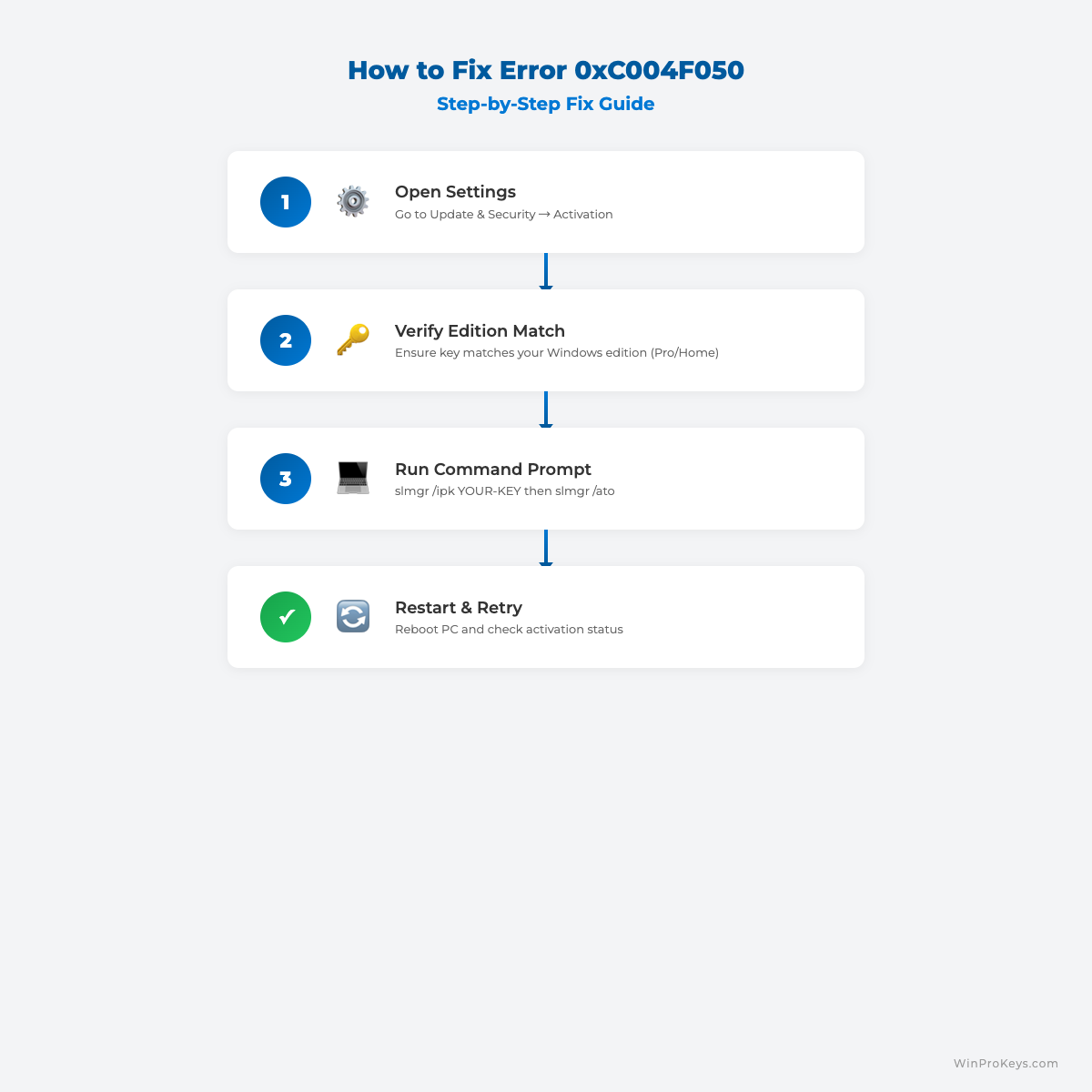
Visual Fix Guide
Before vs After Activation
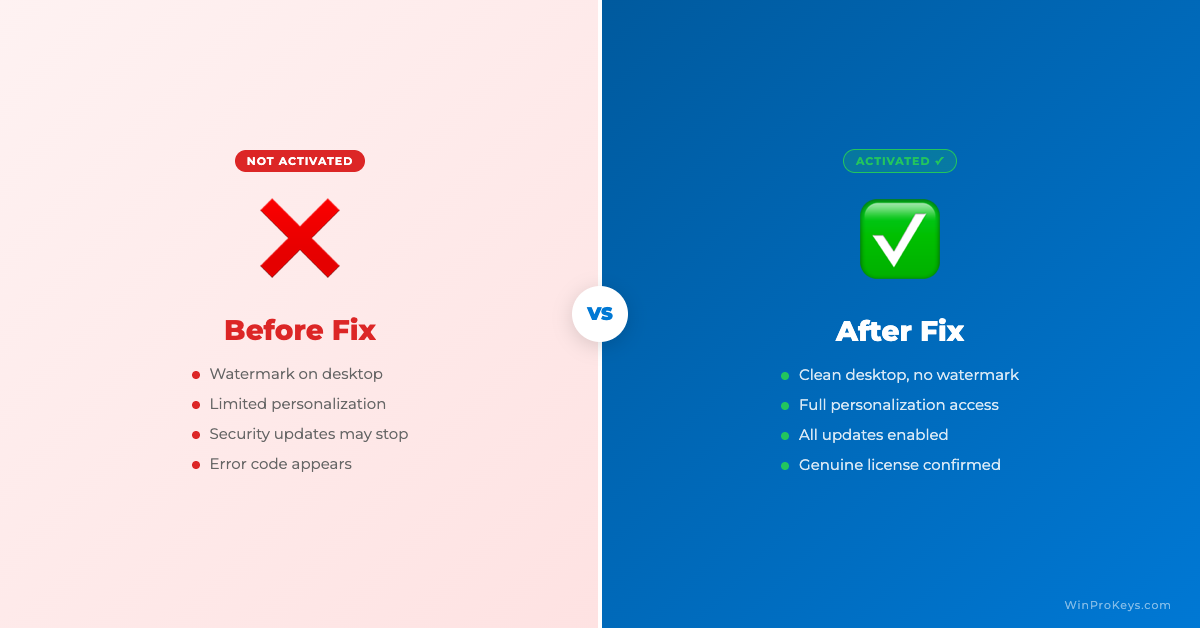
Whichever version you choose, route activation by installed edition, product-key versus digital-license wording, and exact error message. Start with the Windows activation error-code hub if activation does not complete.
Frequently Asked Questions
Is Windows 11 better than Windows 10 for a new computer?
For a new computer, Windows 11 is usually the better default because it is the current platform and gets the longer support runway.
Why would someone stay on Windows 10?
Some users stay on Windows 10 because of older hardware, legacy apps, or a short-term repair need. It should be a compatibility choice, not the default for a new build.
Does Windows 10 support still matter in 2026?
Yes. Windows 10 standard support ended on October 14, 2025, so security and lifecycle expectations should be part of the decision.
Source and Support Links
Use Microsoft pages for Windows lifecycle, requirements, edition comparison, activation, and product-key context. Use WinProKeys pages for store delivery, order support, and reseller-specific guidance.
Frequently Asked Questions
What should I check first when choosing Windows 11 vs Windows 10?
Check Windows 10 support status, Windows 11 hardware eligibility, installed edition, activation status, required apps or drivers, and any exact setup or activation message.
Is WinProKeys a Microsoft website?
No. WinProKeys is an independent software-key reseller, not Microsoft. Microsoft pages are source context for Windows lifecycle, requirements, activation, and product-key behavior.
What should I send support if activation does not work?
Use private support with the installed Windows edition, exact error code, visible non-sensitive wording, device context, and order reference. Do not post full keys, order emails, Microsoft account emails, payment details, or private screenshots publicly.
Need the live product pages?
If you have finished the guide and need the current Windows or Office pages, use the shop as the source of truth for pricing, delivery details, and activation help.
Open the shopChoose the product path that matches your device
These are the six Windows and Office routes we actively support most. Pick by edition fit first, then use the live product page for redemption steps, delivery timing, and post-sale support details.
If you are still deciding, use the Windows hub o Office hub before checkout.

