


Last Updated: Maio 31, 2026
Short Answer
Short answer: a Windows 11 Pro key should be used on a Windows 11 Pro installation, not as a shortcut around an edition mismatch. Confirm the device is on Pro, check whether a digital license is already linked, then enter the key through Settings and handle any error code before retrying.
Microsoft Support Sources To Check First
- Microsoft Support: activate Windows
- Microsoft Support: product keys for Windows
- Microsoft Support: reactivating Windows after a hardware change
WinProKeys is an independent software-key reseller, not Microsoft. Use this guide as a diagnostic checklist before buying, retrying activation, or contacting support.
Related WinProKeys Support Paths
- Windows 11 Home to Pro upgrade FAQUse this before entering a Pro key on a Home installation.
- Fix 0xC004F050 during Home-to-Pro upgradeUse this if the upgrade path blocks activation.
Windows 11 Pro Activation Readiness Checklist
Use this checklist before and after entering a Windows 11 Pro product key. It separates edition fit, product-key entry, digital license state, error-code routing, and private support evidence so the next step is clearer.
| Step | What to check | Why it matters |
|---|---|---|
| Confirm the installed edition first | Open Settings > System > Activation and check whether the PC already shows Windows 11 Pro, Windows 11 Home, or a digital-license state. If it is Home, read the Home-to-Pro upgrade checklist before entering a Pro key. | A Windows 11 Pro key cannot activate the wrong installed edition; edition fit should come before repeated key entry. |
| Use the product-key path deliberately | Use Microsoft source context from Activate Windows and Find your Windows product key, then enter the key through Change product key. | If the buyer is unsure what kind of key or license they have, route to the Windows product key FAQ first. |
| Separate product key from digital license | If Windows mentions a digital license, linked Microsoft account, hardware history, or previous activation, compare it with the digital license vs product key guide. | A product-key issue and a digital-license recovery issue can look similar on the Activation page but lead to different next steps. |
| Route Home/Pro mismatch messages | If the message looks like `0xC004F050`, wrong edition, or Pro key entered on Home, use the 0xC004F050 edition-fit guide before assuming the key itself is bad. | For Home-to-Pro cases, the upgrade step and the activation step are separate checks. |
| Use exact error-code routing | If activation returns a code, use the Windows activation error-code hub or the Windows activation decision tree instead of retrying blindly. | Exact-code routing separates network, server, already-used, hardware-change, KMS/volume, and edition/version mismatch cases. |
| Run Troubleshooter and prepare private evidence | Use Microsoft context for the Windows Activation troubleshooter, then send only safe private evidence from what to send WinProKeys support if activation still fails. | Public comments should not include full product keys, order emails, Microsoft account emails, payment details, or private screenshots. |
WinProKeys is an independent software-key reseller, not Microsoft. For order-specific review, keep full product keys, order emails, Microsoft account emails, payment details, and private screenshots out of public comments.
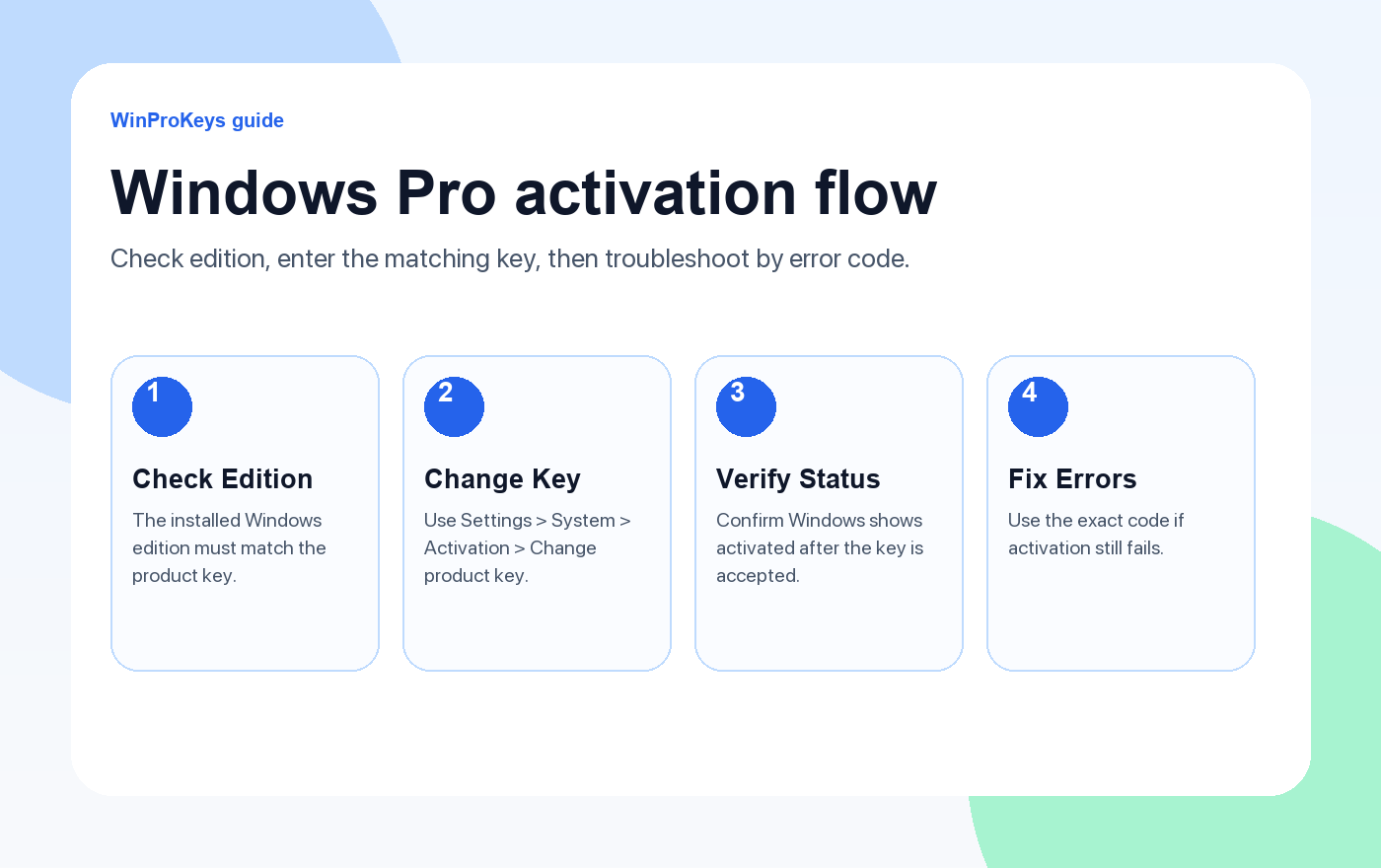
To activate Windows 11 Pro with a product key, first confirm the PC is actually running Windows 11 Pro, then enter the key in Settings > System > Activation > Change product key. Most failed activations come from an edition mismatch, a mistyped key, a temporary connection problem, or an older digital license state.
Do not judge the product key before checking the installed edition. A Pro key cannot complete normal activation while Windows is still installed as Home.
Fast path
Open Settings > System > Activation, check that the edition says Windows 11 Pro, select Change product key, enter the 25-character key, and wait for the activation status to update.
Before You Enter the Key
- Open Settings > System > Activation and read the edition shown on the page.
- Make sure the order is for Windows 11 Pro, not Windows 11 Home or Windows 10.
- Use a stable internet connection before the final activation step.
- Keep the order email available in case support needs to confirm the purchase record.
Why the Edition Check Matters
Windows activation is edition-sensitive. A Windows 11 Pro product key is meant for Windows 11 Pro. If the installed system is still Windows 11 Home, Windows may reject the key before it ever reaches the normal activation path. This is why the Activation page is more useful than the product box or order name alone.
The same rule applies after a reinstall. If you reinstall Home by mistake and then enter a Pro key, the problem may be the installed edition, not the key itself. Correct the edition first, then activate.
Step-by-Step Activation
- Press Windows key + I to open Settings.
- Go to System > Activation.
- Click Change product key.
- Enter the 25-character Windows 11 Pro product key exactly as delivered.
- Wait for Windows to contact activation services.
- Restart once if Windows accepts the key but the status does not refresh immediately.
If the PC Still Shows Windows 11 Home
If the installed edition is still Home, use the Windows 11 Home to Pro upgrade flow before retrying the purchased Pro key. The edition switch and the activation are separate steps.
Common Activation Errors
- 0xc004f050: often points to edition mismatch or a key that cannot be used with the current installed edition. See the Home-to-Pro 0xc004f050 guide.
- 0xc004c003: can appear when the activation server rejects the key or the activation state. Use the 0xc004c003 guide.
- 0x803f7001: usually means Windows cannot find a valid license for the current device. Check the 0x803f7001 guide.
When to Contact Support
If Windows shows Pro but activation still fails, send support a screenshot of Settings > System > Activation with the edition, activation state, and exact error code visible. WinProKeys is an independent software key reseller, not operated by Microsoft, and support can help with order and activation context.
What to Avoid
- Do not use random command-line activation scripts from forums.
- Do not repeatedly paste the same key if Windows is still on the wrong edition.
- Do not hide the error code when asking support for help.
- Do not assume Windows 10, Windows 11 Home, and Windows 11 Pro keys are interchangeable.
A clean activation attempt is easier to support: matching edition, normal Settings path, stable connection, clear screenshot if it fails.
Frequently Asked Questions
Can I activate Windows 11 Home with a Windows 11 Pro key?
Not directly. If the PC still shows Windows 11 Home, change the edition to Pro first, then enter the Windows 11 Pro key.
Where do I enter a Windows 11 Pro product key?
Go to Settings > System > Activation > Change product key, then enter the 25-character Windows 11 Pro key.
What if the key returns 0xc004f050?
That often means the installed edition and key do not match. Use the Home-to-Pro 0xc004f050 guide if the PC still shows Home.
Should I reinstall Windows to activate Pro?
Usually no. First check the installed edition and activation page. Reinstall only when the current Windows installation is damaged or the edition path cannot be corrected.
Remote Work Decision Path
Activation support should link back to the feature reason so users do not enter a Pro key for the wrong edition need.
- Remote-work activation readiness checklist – Use this when activation follows a Remote Desktop, BitLocker, or small-business Pro upgrade decision.
- Activation Troubleshooter next checks – Use this if activation does not complete after the normal checks.
- Digital license vs product key – Use this when the user is unsure whether the PC already has an activation record.
Need the live product pages?
If you have finished the guide and need the current Windows or Office pages, use the shop as the source of truth for pricing, delivery details, and activation help.
Open the shopUse the next step that matches your setup
Stay with the Windows and Office routes we actively maintain most. Choose the guide, troubleshooting path, or hub that answers the next real question instead of jumping into an unrelated product page.
Use the live guide or product page as the source of truth for delivery, redemption, and post-sale support details.

