



Last Updated: May 30, 2026
Short Answer
Short answer: Microsoft 365 is a subscription with ongoing cloud services and updates, while Office 2021 or Office 2019 is a one-time Office route for buyers who prefer a fixed app set on a compatible PC. Compare total cost, update expectations, account requirements, and the support timeline before choosing.
Microsoft Support Sources To Check First
- Microsoft Support: difference between Microsoft 365 and Office 2021
- Microsoft Support: Office 2021 and Office LTSC 2024 FAQ
- Microsoft Learn: Office 2021 lifecycle
- Microsoft Learn: Office 2021 lifecycle
WinProKeys is an independent software-key reseller, not Microsoft. Use this guide as a diagnostic checklist before buying, retrying activation, or contacting support.
Related WinProKeys Support Paths
- Office one-time version comparisonUse this when the buyer has already chosen one-time Office over subscription.
- Office 2021 support timeline checklistUse this to understand support-window tradeoffs before buying.
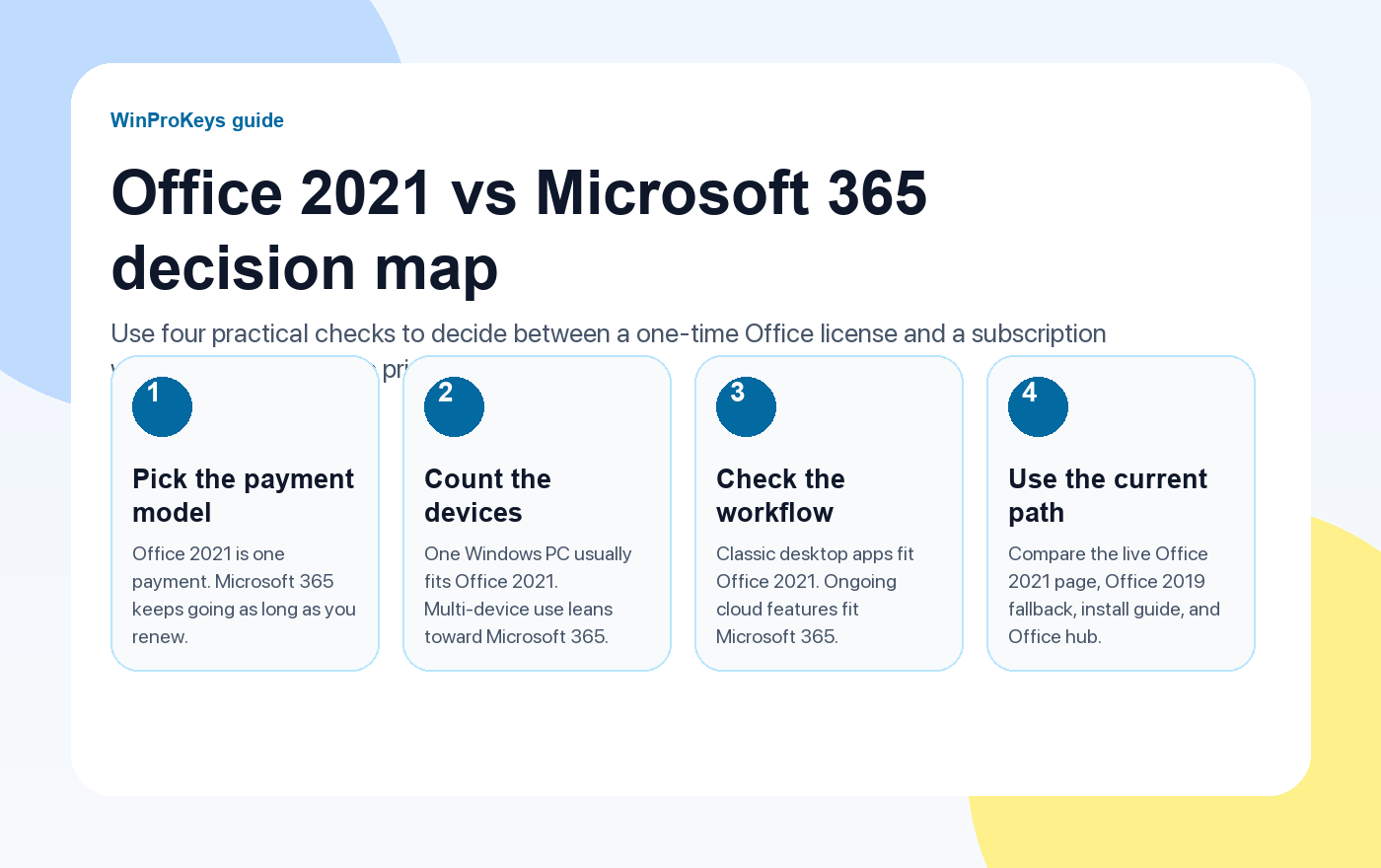
Office 2021 vs Microsoft 365 stops being a simple buying question once you look at how you actually work. The better fit depends on whether you want one stable Office release on one Windows PC, or an always-current service that follows you across devices and keeps adding features.
If your plan is straightforward – classic desktop apps, one machine, no recurring bill – Office 2021 is usually the cleaner fit. If you want ongoing feature updates, easier multi-device use, and bundled cloud services, Microsoft 365 is the more flexible path.
Office Path
Open the current Office paths before you decide
Use the live Office pages and setup guide before you choose between a perpetual Office key and a subscription.
- Check the live Office 2021 pageUse the current product page for delivery, redemption, and support details.
- Compare Office 2019 if compatibility mattersKeep this as an intentional fallback when the 2019 release is still required.
- Review the install flow firstKeep the setup guide open so redemption is straightforward after purchase.
- Browse the Office hubUse the Office hub if you still need a clean view of the current one-time Office paths.
Quick Answer
Choose Office 2021 if you want a one-time Office license for one Windows PC and you do not need ongoing feature changes. Choose Microsoft 365 if you work across devices, want included OneDrive storage, or prefer the subscription model because your setup changes often.
| What matters | Office 2021 | Microsoft 365 |
|---|---|---|
| Payment model | One-time purchase | Recurring subscription |
| Update cadence | Security updates only | Ongoing feature and security updates |
| Best device pattern | One Windows PC with a stable setup | Multiple devices or users that move between machines |
| Offline use | Works offline after setup | Desktop apps work offline, but the subscription must stay current |
| Support timeline | Support ends on October 13, 2026 | Support continues while the subscription and supported platform remain active |
| Best fit | Buyers who want a predictable one-time Office path | Users who want cloud services, ongoing features, and broader device flexibility |
Choose Office 2021 if this sounds like you
- You want a one-time Office purchase for one Windows machine
- You mainly need classic desktop apps such as Word, Excel, PowerPoint, and Outlook
- You prefer a stable release over ongoing feature changes
- You want a straightforward perpetual Office path that does not depend on an active subscription
If that is your situation, start with the live Office 2021 Professional Plus page and the separate Office 2021 buying guide before you buy.
Choose Microsoft 365 if this sounds like you
- You work across more than one device or share the plan across a household or team
- You want ongoing feature updates instead of staying on one fixed release
- You rely on OneDrive storage, collaboration tools, and broader web or mobile access
- You are comfortable with a recurring payment in exchange for flexibility
Microsoft 365 is usually easier to justify when your workflow changes often. It is less compelling when you only need the classic Office desktop apps on a single Windows PC.
Where Office 2019 still fits
Office 2019 Professional Plus still has a place when compatibility with an older setup is intentional. But it should not be the default recommendation for a fresh long-term install. Microsoft support for Office 2019 ended on October 14, 2025, so use it only when that older release is part of the plan.
What to check before you buy a one-time Office key
- Make sure you actually want a perpetual license instead of a subscription
- Confirm the app mix you need before you pay, especially if Outlook, Access, or Publisher matter
- Use a seller with a real refund or replacement path, not just a low headline promise
- Keep the Office install guide ready so setup is straightforward after purchase
After you buy
If you choose a perpetual Office key, do the setup through the Microsoft redemption and install flow. The cleanest next step is the updated How to Install Microsoft Office with a Product Key guide, which now stays focused on Office 2021 and Office 2019.
Frequently Asked Questions
Is Office 2021 still supported?
Yes. Microsoft says support for Office 2021 ends on October 13, 2026. The apps will continue to run after that date, but Microsoft will stop providing support and security updates.
Can I use Office 2021 without a subscription?
Yes. Office 2021 is a one-time purchase. After setup, it works like a normal desktop Office release and can be used offline.
Is Microsoft 365 better for one computer?
Not automatically. If you only need classic Office apps on one Windows PC, Office 2021 is often the simpler fit. Microsoft 365 makes more sense when you need multiple devices, ongoing features, or bundled cloud services.
When should I choose Office 2019 instead?
Choose Office 2019 only when you intentionally need that release for compatibility. Support ended on October 14, 2025, so it is no longer the default path for a fresh long-term setup.
Choose your next Office step
If you want the current one-time Office path, compare Office 2021 Professional Plus, Office 2019 Professional Plus, and the broader Office key hub before you buy.
If you are still checking seller quality rather than product fit, use the updated Office 2021 seller guide next.
Protected by the published after-sales policy. Instant digital delivery. Learn more about us.
Office Reinstall And Account Route Map
Before comparing a new Office purchase with Microsoft 365, separate subscription fit from reinstall, account ownership, and already-redeemed key issues.
- Office wrong-account checklist – Use when Office says the key is tied to another or unknown Microsoft account.
- Find which Microsoft account has Office – Use when the owning account is unclear.
- Office after clean Windows install – Use after a PC reset, Windows reinstall, or clean setup.
- Office product key already redeemed – Use when the redemption error appears.
- Office product key FAQ – Use for broader Office key and reinstall questions.
primary source Context
Microsoft controls Office account sign-in, Services & subscriptions, and general install or reinstall behavior. WinProKeys can review store-order evidence, delivery, and post-order support context only.
Need the live product pages?
If you have finished the guide and need the current Windows or Office pages, use the shop as the source of truth for pricing, delivery details, and activation help.
Open the shopUse the next step that matches your setup
Stay with the Windows and Office routes we actively maintain most. Choose the guide, troubleshooting path, or hub that answers the next real question instead of jumping into an unrelated product page.
Use the live guide or product page as the source of truth for delivery, redemption, and post-sale support details.


One thought on “Office 2021 vs Microsoft 365: One-Time Purchase or Subscription?”
Comments are closed.