


Last Updated: maj 30, 2026
Short Answer
Windows 11 gaming performance improves more from clean drivers, sensible graphics settings, storage health, and a stable install than from aggressive ‘debloat’ tricks. Activation does not directly add FPS, but a properly activated and updated install makes driver and feature management much easier.
- Start with GPU drivers, Game Mode, storage space, and thermal limits before registry tweaks.
- Only enable advanced features such as hardware scheduling when your hardware and game library actually benefit.
- Choose Windows 11 Pro for management or security needs, not because you expect automatic FPS gains.
Most Windows 11 gaming advice still overpromises. The web is full of fake miracle tweaks, registry edits, and recycled “debloat” lists that do more to waste time than improve a game. The Windows settings that actually matter are much more ordinary: display behavior, HDR handling, and the way Windows presents windowed games.
Gaming checks
Use these pages before you spend money or reinstall Windows for gaming
Most gaming PCs need the right settings more than they need dramatic upgrade claims. Windows 11 Home is often enough unless the machine also doubles as a work or admin-heavy device.
- Windows 11 Home Product KeyOften the cleaner fit for gaming-first personal machines.
- Klucz produktu Windows 11 ProUseful only if the same PC also needs Pro features.
- Windows 11 Home vs ProCheck this before assuming Pro helps gaming by itself.
- How to upgrade to Windows 11Helpful if the gaming PC is still on Windows 10.
1. Optimizations for windowed games
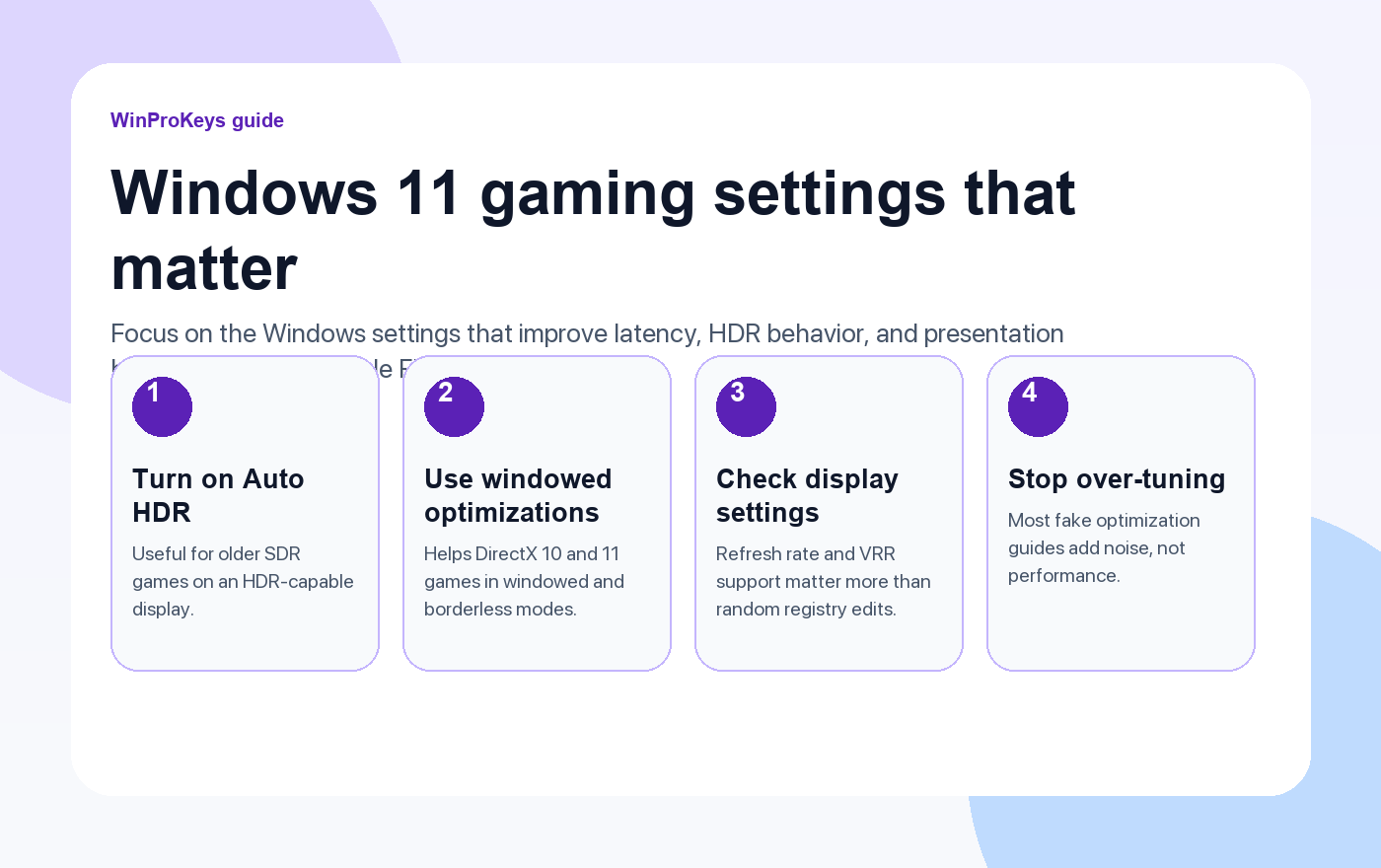
This is one of the most useful real settings in Windows 11 for people who play in borderless windowed or regular windowed mode. Microsoft says Optimizations for windowed games improves gaming performance for DirectX 10 and DirectX 11 games in those modes by moving them to a newer presentation model, reducing frame latency and enabling features such as Auto HDR and variable refresh rate on supported displays.
2. Auto HDR
Auto HDR does not turn a bad display into a good one, and it does not magically raise frame rates. What it can do is make older SDR games look better on an HDR-capable display by automatically extending brightness and color range in supported situations. It is worth trying if your monitor is already ready for HDR and you play older DirectX 11 or 12 titles.
3. Display settings still matter
Windows cannot fake a higher-quality panel, but it can still get in the way when refresh-rate and display settings are wrong. Before you chase deeper tweaks, check the monitor’s actual refresh rate, confirm VRR support where available, and make sure Windows is not sitting on the wrong display mode.
| Setting | Best for |
|---|---|
| Optimizations for windowed games | DirectX 10 and 11 games played borderless or windowed |
| Auto HDR | Older SDR games on an HDR-capable display |
| Refresh-rate and VRR check | Any setup where the display may not be running at its best mode |
What usually matters less than people think
Most cleanup scripts, registry tips, and broad “Windows optimization” lists. They sound technical, but they often solve yesterday’s problem or no problem at all. Start with the Windows settings that actually change game presentation and input feel before you touch the rest.
Frequently Asked Questions
Will these settings raise FPS in every game?
No. The benefit is usually smoother presentation, lower latency in the right case, or better HDR behavior.
What is the easiest setting to check first?
Optimizations for windowed games is the easiest meaningful setting to review.
Does Auto HDR help on every display?
No. It helps only when the display is HDR-capable and the game is a good fit.
Do I need Pro just for gaming?
Usually not. Windows 11 Home is enough for many gaming-focused PCs.
Source and Support Links
Use Microsoft support pages for official activation rules and version behavior. Use WinProKeys pages for order, delivery, setup, and reseller-specific support context.
Frequently Asked Questions
Does Windows 11 Pro give better FPS than Home?
Not by itself. Performance gains usually come from hardware, drivers, and game settings. Pro becomes useful when you also want BitLocker, Remote Desktop host, or other non-gaming tools.
Should gamers disable security features for performance?
Only with caution. Random scripts and blanket security-disable advice often cause more problems than they solve. Change one setting at a time and test the result.
Is WinProKeys operated by Microsoft?
No. WinProKeys is an independent software key reseller, not operated by Microsoft. Use Microsoft Support pages for general activation and product behavior, and use WinProKeys for order, delivery, and reseller-specific support.
Need the live product pages?
If you have finished the guide and need the current Windows or Office pages, use the shop as the source of truth for pricing, delivery details, and activation help.
Open the shopUse the next step that matches your setup
Stay with the Windows and Office routes we actively maintain most. Choose the guide, troubleshooting path, or hub that answers the next real question instead of jumping into an unrelated product page.
Use the live guide or product page as the source of truth for delivery, redemption, and post-sale support details.

