


Last Updated: مايو 30, 2026
Short Answer
Short answer: transfer depends on license type and device history. Retail licenses are the normal candidate for moving to another PC; OEM licenses usually stay with the first device. Before buying again, check the activation page, Microsoft account link, edition, and whether the issue is a hardware-change reactivation case.
Microsoft Support Sources To Check First
- Microsoft Support: activate Windows
- Microsoft Support: product keys for Windows
- Microsoft Support: reactivating Windows after a hardware change
WinProKeys is an independent software-key reseller, not Microsoft. Use this guide as a diagnostic checklist before buying, retrying activation, or contacting support.
Related WinProKeys Support Paths
- Motherboard-change activation checklistUse this when the old PC changed hardware instead of moving to a completely new device.
- Can you use the same Windows product key twice?Use this to separate transfer, reuse, and edition-mismatch questions.
Moving a Windows license to a new computer is usually straightforward when you know what kind of license you have and you follow the steps in the right order. Most frustration comes from two avoidable mistakes: trying to transfer a license that was never meant to move, or reinstalling the wrong edition on the new machine.
Transfer path
Move the license in the right order
Link the Microsoft account before you move hardware, keep the edition the same, and use the activation page before you assume the license is lost.
- Check Windows key typesUseful if you do not know whether the license is retail, OEM, or tied to another channel.
- Open Windows 11 HomeA direct path if you learn the old license cannot move.
- Open Windows 11 ProUse this if the new PC needs Pro and the old key does not transfer.
- Open activation error fixesHelpful if the troubleshooter stops at an error code.
Retail and digital licenses are the practical candidates for transfer
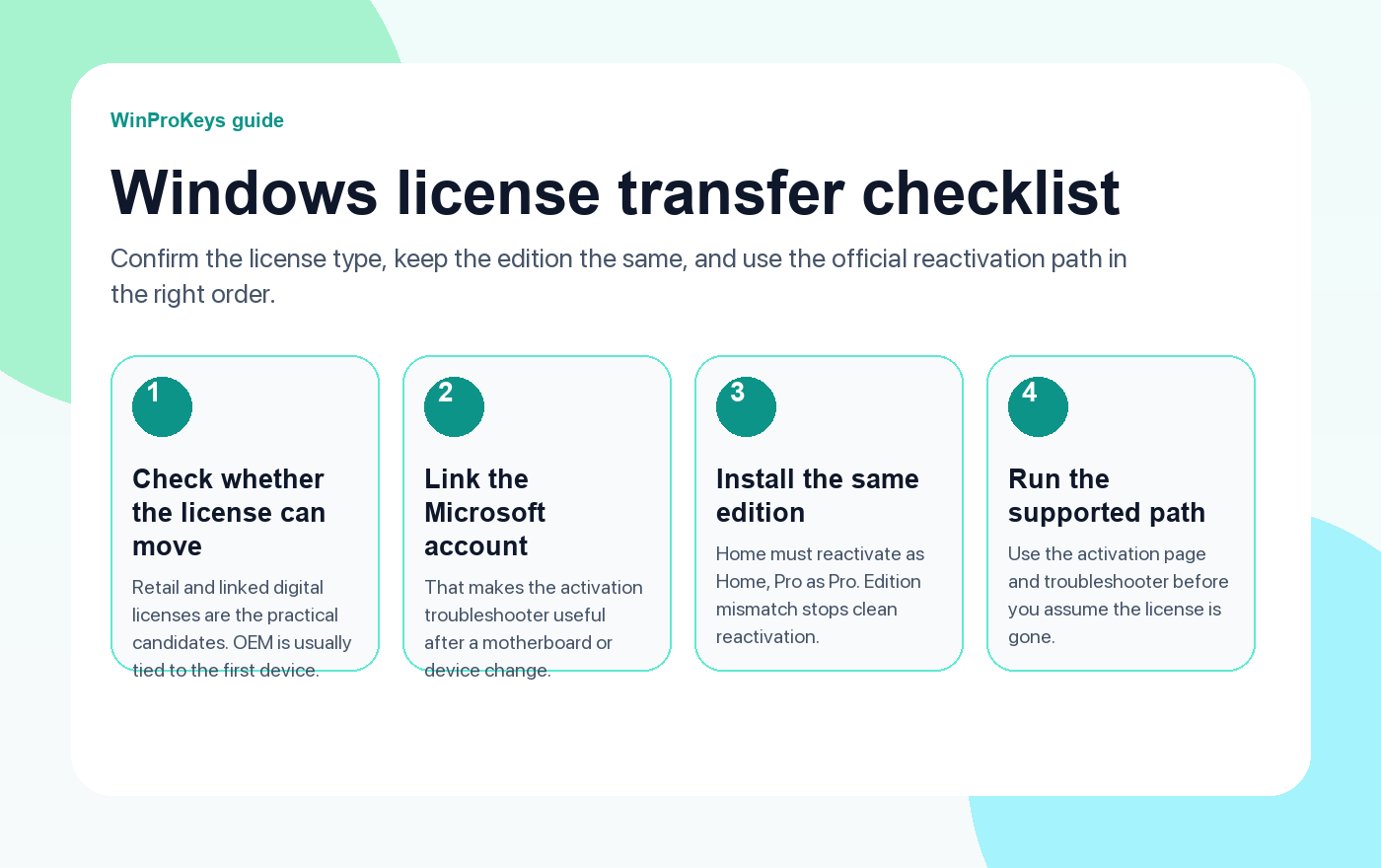
In day-to-day use, retail licenses and digital licenses linked to your Microsoft account are the licenses most likely to move cleanly. OEM licenses are different. They are usually tied to the first device they activate on, especially after a motherboard change. That does not mean every case is identical, but it is the safer assumption before you begin.
If you are not sure what you have, check the Activation page first and note the edition. If you want a second check, run slmgr /dli in an elevated Command Prompt to inspect the licensing channel.
Link the Microsoft account before you move hardware
Microsoft’s supported reactivation path after a major hardware change depends on the device being linked to your Microsoft account. On the Activation page, you want to see that Windows is activated with a digital license linked to your Microsoft account. If you skip this step and then replace the motherboard or migrate to a new PC, the troubleshooter becomes much less useful.
This is the part people remember too late. Do it before you wipe the old machine or retire it.
Keep the edition the same on the new PC
This trips people up all the time. A Windows Home license reactivates Windows Home. A Windows Pro license reactivates Windows Pro. If you install the wrong edition on the new computer, the activation flow gets messy even when the license itself would have been valid.
| Step | What to do | Why it matters |
|---|---|---|
| Before the move | Confirm activation and link the Microsoft account | Makes the troubleshooter usable later |
| During install | Install the same edition | Avoids a false activation mismatch |
| After install | Run the activation troubleshooter or enter the product key | Uses Microsoft’s supported reactivation path |
The clean activation sequence
- On the old device, confirm Windows is activated.
- Link the Microsoft account to the digital license if possible.
- Install the same Windows edition on the new computer.
- Sign in, open Activation, and run the troubleshooter if Windows is not already activated.
- If you have a retail product key, enter that key through Activation.
If the transfer does not work
Usually one of three things happened. The old license was OEM. The wrong edition was installed. Or the Microsoft account was not linked before the hardware change. Check those first before you spend money or assume the key is dead.
If the device throws a recognizable activation code, start with the dedicated guides for 0x803F7001 and 0xC004C003. Those two paths solve a large share of post-migration activation confusion.
Frequently Asked Questions
Can I move an OEM license to a new PC?
Usually no. OEM is normally tied to the original hardware.
What if I changed the motherboard?
That is one of the hardware changes most likely to break activation. Use the linked-account troubleshooter path if the license type allows it.
Do I need the same edition on the new device?
Yes. Home should stay Home, and Pro should stay Pro during reactivation.
What if I cannot reactivate cleanly?
Verify the license type first. If it was OEM or if the old license cannot move, compare the current Windows pages instead of wasting more time on guesswork.
Need the live product pages?
If you have finished the guide and need the current Windows or Office pages, use the shop as the source of truth for pricing, delivery details, and activation help.
Open the shopUse the next step that matches your setup
Stay with the Windows and Office routes we actively maintain most. Choose the guide, troubleshooting path, or hub that answers the next real question instead of jumping into an unrelated product page.
Use the live guide or product page as the source of truth for delivery, redemption, and post-sale support details.

