



Last Updated: 5 月 30, 2026
Short Answer
The best hidden Windows 11 Pro features are not flashy extras. They are the tools that help once you want better security, remote access, testing, or device control, and they matter more to long-term users than to day-one casual setup.
- BitLocker, Hyper-V, and remote access tools matter most when you have a clear use case for them.
- These features are useful because they solve real workflow problems, not because they make the desktop look different.
- Check whether your current PC actually needs Pro before you upgrade from Home.
Windows 11 Pro does not feel dramatically different from Home on day one. That is why many buyers assume the extra features are mostly for offices and ignore them. The reality is more practical. A few Pro-only tools become useful the moment you want more control, better protection, or a safer place to test something before it touches your main setup.
Worth checking
Five Windows 11 Pro tools that stay useful long after setup
Most people buy Pro for the label and never use the parts that justify it. These are the features that actually matter once the machine settles into daily life.
- Open the Windows 11 Pro pageCompare the live Pro offer once you know the features you will actually use.
- Compare Home and ProUseful if you are still deciding whether Pro is worth it at all.
- Read the broader Pro feature guideA practical follow-up if you want more examples.
- See when a Home to Pro upgrade makes senseHelpful if the PC already runs Home today.
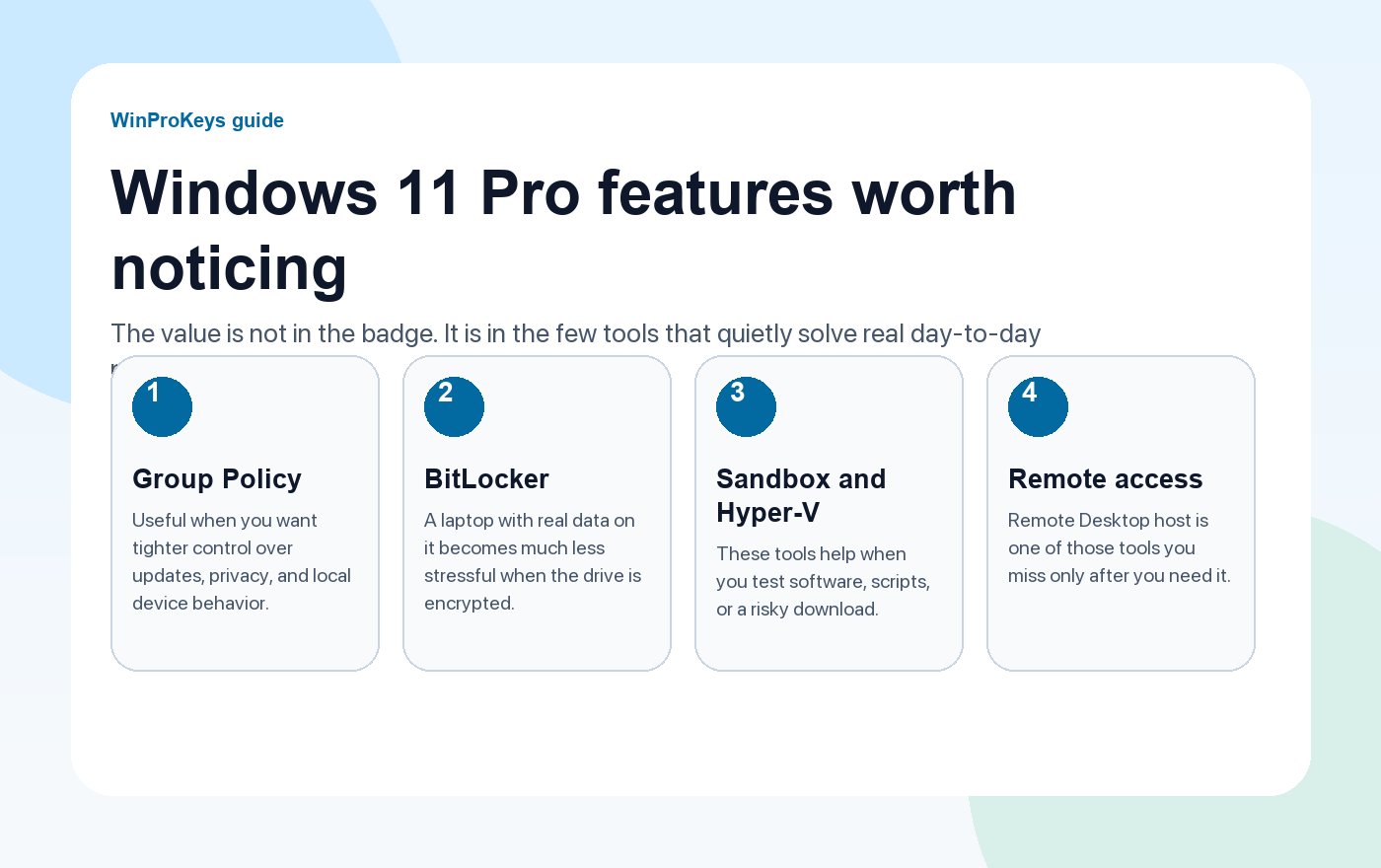
Five Windows 11 Pro tools that stay useful long after setup
The best Pro features are not flashy. They solve annoying real-world problems quietly, which is why people overlook them until they need them.
1. Local Group Policy Editor
Local Group Policy Editor is one of the cleanest reasons to want Pro. It gives you more direct control over Windows behavior, especially around updates, privacy settings, device restrictions, and system policies that Home users often have to work around. If you like having a tighter grip on what the operating system does, this tool matters.
2. BitLocker
BitLocker is more useful than it sounds. On a desktop it is nice to have. On a laptop, it can be the feature that makes you much less nervous about losing the device. If the machine carries work files, business documents, or anything personal you would hate to expose, full-drive encryption stops being an enterprise checkbox and starts being common sense.
3. Windows Sandbox
Sandbox is a disposable Windows session for checking a file, installer, or odd utility before you trust it on the main system. If you download mods, scripts, small tools, or vendor utilities from places that are not fully predictable, Sandbox is one of the safest quiet advantages of Pro.
4. Hyper-V
Hyper-V helps when Sandbox is not enough and you want a repeatable test machine. It is not a feature every buyer needs, but it becomes valuable quickly for developers, tinkerers, advanced users, or anyone who likes testing a second environment without touching the main installation.
5. Remote Desktop host
Home can connect out with Remote Desktop clients, but Pro can host the session. That matters if you need to reach your own PC from another room, another building, or another device. Once you start using it, it feels much less like a “business” feature and much more like a plain convenience tool.
| Feature | Best for | Why it matters |
|---|---|---|
| Local Group Policy Editor | Users who want more control | Makes system behavior easier to tune without clumsy workarounds |
| BitLocker | Laptop and mixed-use owners | Protects the drive if the machine is lost or stolen |
| Windows Sandbox | Careful downloaders and testers | Lets you test without touching the main install |
| Hyper-V | Advanced users and developers | Adds a proper virtual machine path on the device |
| Remote Desktop host | People who need remote access to their own PC | Turns the machine itself into the host instead of just the client |
So when is Pro worth it?
Pro is worth it when you read that list and see two or three features you would actually use. If you only browse, stream, write documents, and play games without caring about device control, encryption, remote access, or test environments, Home is still the simpler fit.
If you work across devices, travel with a laptop, test software, or want tighter control over Windows itself, Pro becomes easier to justify very quickly.
Frequently Asked Questions
Do these features improve performance?
Not directly. Their value is in control, security, and flexibility.
Which feature matters most for everyday users?
BitLocker and Group Policy Editor are the two most practical for many non-enterprise users.
Is Sandbox the same as Hyper-V?
No. Sandbox is the quick disposable environment. Hyper-V is the fuller virtual machine path.
Should I upgrade just for one feature?
Sometimes yes, if that one feature solves a recurring problem you actually have. If not, stay on Home.
Source and Support Links
Use Microsoft support pages for official activation rules and version behavior. Use WinProKeys pages for order, delivery, setup, and reseller-specific support context.
Frequently Asked Questions
Which hidden Windows 11 Pro feature is most useful at home?
For many home users, BitLocker is the first feature that becomes genuinely useful because it adds device-level protection without changing daily habits too much.
Are these Pro-only features available on Home?
Not all of them. That is why edition choice matters. If the features you care about are Pro-only, a Home key will not unlock them.
Is WinProKeys operated by Microsoft?
No. WinProKeys is an independent software key reseller, not operated by Microsoft. Use Microsoft Support pages for general activation and product behavior, and use WinProKeys for order, delivery, and reseller-specific support.
Need the live product pages?
If you have finished the guide and need the current Windows or Office pages, use the shop as the source of truth for pricing, delivery details, and activation help.
Open the shopChoose the product path that matches your device
These are the six Windows and Office routes we actively support most. Pick by edition fit first, then use the live product page for redemption steps, delivery timing, and post-sale support details.
If you are still deciding, use the Windows hub or Office hub before checkout.

